This revision contains only editorial changes and no technical updates.
Introduction to
the
Click to Pay Drop-In UI
Click to Pay Drop-In UI
powered by
Unified Checkout
provides an interface for easy acceptance of
Click to Pay
payments from Visa, Mastercard, and American Express cards.
The
Click to Pay Drop-In UI
handles manual card entry
for the non-
Click to Pay
payment schemes called out in this guide.
Throughout this guide we refer to both
Click to Pay Drop-In UI
and
Unified Checkout
.
Click to Pay Drop-In UI
consists of a set of server-side APIs
and a client-side JavaScript library.
The server-side APIs authenticate your merchant identity, instruct the system to
act within your payment environment, and provide a way to retrieve the payment data
following a successful
Click to Pay Drop-In UI
interaction.
The provided JavaScript library enables you to place a payment application within your
e-commerce environment. This embedded component offers
Click to Pay
and card entry to your customers.
Whether a customer uses a stored
Click to Pay
card or enters their
payment information manually,
the
Click to Pay Drop-In UI
handles all user interactions and provides a
response to your e-commerce system. All UI / UX must follow the UI/UX guidelines. For
information about configuring your UI/UX, see Click to Pay UI Examples.
The
Click to Pay Drop-In UI
enables a portfolio to
receive an encrypted payload and send a request to the API to retrieve the payment
details. The format of the decrypted payment details are determined by the transaction
type. The details are either a network token and cryptogram or the PAN, expiration
details, and card verification value (CVV).
The figures below shows the
Click to Pay Drop-In UI
for a recognized user.
Figure:
Unified Checkout
UI with Card Payment Button
Figure:
Unified Checkout
UI without Card Payment Button
IMPORTANT
Each request that you send to
Visa Acceptance Solutions
requires header information. For information about constructing the headers for your
request, see the
is designed to provide customers with a
friction-free payment experience across many payment experiences. The user experience
has been optimized for mobile use and performs equally well on mobile and desktop
devices.
Click to Pay
recognizes customers as follows:
The customer is a recognized
Click to Pay
customer.
The customer is not recognized but is a
Click to Pay
customer.
The customer is a guest at checkout.
These workflows show you the pages a customer encounters based on their status:
recognized
experience. This interaction occurs when a customer’s device is recognized by the
Click to Pay Drop-In UI
.
A customer's device is recognized under these conditions:
When the customer has used
Click to Pay
on their device
through any
Click to Pay
channel.
If the customer chose to have their device remembered during a previous
transaction or when they enter their one-time password (OTP).
The cardholder is presented with their stored
Click to Pay
cards
in the UI when they are on a recognized device:
Figure:
Recognized
Click to Pay
Customer UI
Unrecognized
Click to Pay
Customer
This section provides an overview of the
Click to Pay Drop-In UI
unrecognized
experience. This interaction occurs when a customer's device is not recognized by the
Click to Pay Drop-In UI
. This condition occurs when the customer has a
Click to Pay
account but has not opted to have their details
stored on the device. In this flow, the customer receives an OTP on their registered
mobile device or their email address. The OTP can be received from any of the supported
card networks, but will return cards that are stored in
Click to Pay
across all of the user's supported card networks. A Visa cardholder will receive an OTP
to their registered email address and phone number to authenticate their identity. A
Mastercard cardholder will receive an OTP on their registered phone number. After the
user's identity is authenticated, their stored
Click to Pay
credentials are shown:
Figure:
Unrecognized
Click to Pay
Customer on a Recognized Device
UI
Guest Customer
This section provides an overview of the
Click to Pay Drop-In UI
guest
experience. This interaction occurs when the customer has not previously created a
Click to Pay
account, or their issuer has not provisioned their
card into
Click to Pay
.
In the guest experience,
Click to Pay Drop-In UI
captures the PAN details and the
cardholder chooses to create a
Click to Pay
account or to check out
as a guest. In both cases, the payment credentials are available for processing
transactions using your payment gateway.
The cardholder can make a one-time payment or complete the payment and choose to create a
Click to Pay
account for future use using their chosen email
address and phone number combination. A user can select
Switch ID
or
Edit
within the contact details tab in order to look up new
payment details:
Figure:
Guest UI
Click to Pay Drop-In UI
Flow
To integrate
Click to Pay Drop-In UI
into your platform, you must follow
several integration steps. This section gives a high-level overview of how to
integrate and launch
Click to Pay Drop-In UI
on your webpage and process a
transaction. You can find the detailed specifications of the APIs later in this
document.
You send a server-to-server API request for a capture context.
This request is fully authenticated and returns a JSON Web Token (JWT)
that is necessary to invoke the frontend JavaScript library.
For information on setting up the server side, see
Server-Side Set Up.
You invoke the
Unified Checkout
JavaScript library using the JWT
response from the capture context request. For information on setting up the
client side, see Client-Side Set Up.
You use the response from
the
Click to Pay Drop-In UI
to retrieve
payment credentials for payment processing or other steps.
This figure illustrates the system's payment flow.
Figure:
Click to Pay
Payment Flow
For more information on the specific APIs referenced, see these topics:
to add a
transacting merchant to an existing merchant organization.
Click
Next
.
If you are adding a transacting organization to an existing merchant account,
search for the merchant account in the Boarding Presets section.
If you have more than one boarding package, choose a boarding package from the
drop-down menu, or enter text in the search field to find one. Click
Next
. If you have only one boarding package, the Boarding Package section
does not display.
Click
Start
in the Merchant Account Information section to enter account
information. For more information, see Add Merchant Account Information.
Optional: click
Skip
in the Hierarchy Details section to skip
the hierarchy step.
Click
Start
in the Transacting Organization and
Products section to set up a transacting organization and configure products for
it. The Transacting Organization and Products page appears.
Under Transacting Organization Details, enter the transacting organization
name and the organization ID.
Under Product Enablement, find
Unified Checkout
and select
Enabled
under the Enablement drop-down
menu.
Click
Configure
to configure
Unified Checkout
.
Under Payment methods, select
Click to Pay
.
Under Card Brands, select the card brands you want to enable in
Unified Checkout
. These card brands are supported by
Click to Pay
:
American Express
Mastercard
Visa
You can select
Allow All
to enable all card brands for your
merchants. When you select
Allow All
, future additions to supported card
brands are automatically available.
IMPORTANT
You must select at least one card brand to support.
Under Integrated services, select
Retrieve Sensitive Information at
Portfolio Level
.
Click
Apply
to save your configuration.
Enable
Click to Pay
To enable
Click to Pay
on
Unified Checkout
, you must
first register
Click to Pay
. This process sends the appropriate
information to the digital payment systems and registers your page with each system.
Follow these steps to enable
Click to Pay
for
Unified Checkout
using the API or in the
Business Center
. You must
follow these steps for each transacting merchant for which you want to enable
Click to Pay
.
Enabling
Click to Pay Drop-In UI
Using the API
This section shows you how to enable
Click to Pay Drop-In UI
using the Boarding
Registration Service (BRS) API.
To enable
Click to Pay
3DS authentication, you must include these
fields in your request:
is a digital payment solution that allows customers
to pay with their preferred card network and issuer without entering their card details
on every website. Customers can use Visa, Mastercard, and American Express cards to
streamline their purchase experience.
Click to Pay
provides a fast,
secure, and consistent checkout experience across devices and browsers.
If you are unable to access this page, contact your sales
representative.
In the
Business Center
, go to the left navigation panel and choose
Payment Configuration
>
Unified
Checkout
. The
Unified Checkout
customer experience
page appears:
Figure:
Unified Checkout
Customer Experience
In the Payment Options section, click
Manage
. The Payment Options page
appears.
Click
Manage
next to
Click to Pay
. The
Click to Pay
configuration page appears.
Enter your business name and website URL.
Click
Submit
.
IMPORTANT
Click to Pay
uses network tokenization for transactions. These network tokens are stored
in the vault of the token requestor ID (TRID) for the card scheme.
Server-Side Set Up
This section contains the information you need to set up your server. Initializing
Click to Pay Drop-In UI
within your webpage begins with a server-to-server
call to the sessions API. This step authenticates your merchant credentials, and
establishes how the frontend components will function. The sessions API request contains
parameters that define how the
Click to Pay Drop-In UI
performs.
The server-side component provides this information:
A transaction-specific public key that is used by the customer's browser to protect
the transaction.
An authenticated context description package that manages the payment experience on
the client side. It includes available payment options such as card networks,
payment interface styling, and interaction methods.
The functions are compiled in a JSON Web Token (JWT) object referred to as the
This section contains the information you need to set up your server. Initializing
Unified Checkout
within your webpage begins with a server-to-server call to
the Sessions API. This step authenticates your merchant credentials, and establishes
how the frontend components will function. The Sessions API request contains
parameters that define how
Unified Checkout
performs.
The server-side component provides this information:
A transaction-specific public key is used by the customer's browser to protect the
transaction.
An authenticated context description package that manages the payment experience on
the client side. It includes available payment options such as card networks,
payment interface styling, and payment methods.
The functions are compiled in a JSON Web Token (JWT) object referred to as the
The capture context request is a signed JSON Web Token (JWT)
that includes all of the merchant-specific parameters. This request tells the frontend
JavaScript library how to behave within your payment experience. The request provides
authentication, one-time keys, the target origin to the
Unified Checkout
integration in addition to allowed card networks and payment types. The capture context
request includes these elements:
allowedCardNetworks
allowedPaymentTypes
clientVersion
targetOrigin
Use the
targetOrigins
and the
allowedPaymentTypes
fields to define the target origin and the accepted digital payment methods in your capture
context.
When you configure the merchant settings using the Merchant Experience section of the
Business Center
, your request to the
sessions
API must
include these required fields. All other values are determined from the settings
that are configured in the
This section contains the information you need to set up the client side. You use the
Unified Checkout
JavaScript library to integrate with your e-commerce
website. It has two primary components:
The button widget, which presents
Click to Pay
to the customer.
There are different options available to display this to your customers. See these
topics: XXX
The payment acceptance page, which captures payment information from the cardholder.
You can embed the payment acceptance page
within your webpage or add it as a sidebar.
The
Unified Checkout
JavaScript library supports
Click to Pay
and manual card entry payment methods.
Follow these steps to set up the client:
Load the JavaScript library.
Initialize the accept object the capture context JWT. For information JSON Web
Tokens, see JSON Web Tokens.
Initialize the unified payment object with optional parameters.
Show the button list or payment acceptance page or both.
The response to these interactions is a transient token that you use to retrieve the
payment information captured by the UI.
Loading the JavaScript Library and Invoking the Accept Function
Use the client library asset path and client library integrity value that is returned by
the capture context response to invoke
Unified Checkout
on your page.
You can retrieve these values from the
clientLibrary
and
clientLibraryIntegrity
fields that are returned in the JWT from
POST
https://api.visaacceptance.com
/uc/v1/sessions
. You can use
these values to create your script tags.
You must perform this process for each transaction, as these values may be unique for
each transaction. You must avoid hard-coding values for the
clientLibrary
and
clientLibraryIntegrity
fields to prevent client-side errors.
For example, a response from
https://apitest.visaacceptance.com
/uc/v1/sessions
would
include:
"data": {
    "clientLibrary":"[EXTRACT clientLibrary VALUE from here]",
    "clientLibraryIntegrity": "[EXTRACT clientLibraryIntegrity VALUE from here]"
}
Below is an example script
tag:
<script src="[INSERT clientLibrary VALUE HERE]"
    integrity=”[INSERT clientLibraryIntegrity VALUE HERE]”
    crossorigin=”anonymous”></script>
IMPORTANT
Use the
clientLibrary
and
clientLibraryIntegrity
parameter values in the capture context
response to obtain the
Unified Checkout
JavaScript library URL and the
integrity value. This ensures that you are always using the most up-to-date library and
protects against fraud. Do not hard-code the
Unified Checkout
JavaScript
library URL or integrity value.
When you load the library, the capture context from your initial server-side request is
used to invoke the accept function.
JavaScript Example: Initializing the SDK
async function launchCheckout() {
  try {
	const client = await VAS.UnifiedCheckout(sessionJWT);
	const checkout = await client.createCheckout({ autoProcessing: false });
	const token = await checkout.mount('#buttons');
    // result contains the Transient Token
    // Send result to your server for retrieval of payment information
    sendToServer(token);
  } catch (error) {
    if (error.name === 'UnifiedCheckoutError') {
      handleError(error.reason, error.message);
    }
  } finally {
    checkout.destroy();
    client.destroy();
  }
}

launchCheckout();
In this example,
sessionJWT
refers to the capture context JWT.
JavaScript Example: Displaying the Button List
After you initialize the
Unified Checkout
object, you can add the
payment application and payment acceptance pages to your webpage. You can attach the
embedded
Unified Checkout
tool and payment acceptance pages to any
named element within your HTML. Typically, they are attached to explicit named
components that are replaced with
Unified Checkout
’s iframes.
// Sidebar
const result = await checkout.mount('#buttons');

// Embedded
const result = await checkout.mount({
  paymentSelection: '#buttons',
  paymentScreen: '#form'
});
JavaScript Example: Client-Defined Trigger for
Click to Pay
or PAN
Entry
When you display
CLICKTOPAY
or
PANENTRY
as allowed
payment types, you can load the UI without displaying the
Unified Checkout
checkout button. You can do this by creating a trigger
that defines what event loads the UI.
Adding the Payment Application and Payment Acceptance
After you initialize the
Unified Checkout
object, you can add the payment
application and payment acceptance pages to your webpage. You can attach the
Unified Checkout
embedded tool and payment acceptance pages to any named
element within your HTML. Typically, they are attached to explicit named
<div>
components that are replaced with
Click to Pay Drop-In UI
iframes
.
IMPORTANT
If you do not specify a location for the payment acceptance page, it
is placed in the sidebar.
JavaScript Example: Setting Up with Full Sidebar
<html>
<head>
  <script
    src="[INSERT clientLibrary VALUE HERE]"
    integrity="[INSERT clientLibraryIntegrity VALUE HERE]”
    crossorigin=”anonymous"
  ></script>
</head>
<body>
  <h1>Unified Checkout Integration</h1>
  <input
    type="hidden"
    name="sessionJWT"
    value="[INSERT sessionJWT HERE]"
  />
  <script type="text/javascript">
    const sessionJWT = document.getElementById("sessionJWT").value;

    async function launchCheckout() {
      try {
        const client = await VAS.UnifiedCheckout(sessionJWT);
        const checkout = await client.createCheckout();
        const result = await checkout.mount('#payment-buttons');

        // result contains the completed payment result JWT
        // Send result to your server for verification
        sendToServer(result);
      } catch (error) {
        if (error.name === 'UnifiedCheckoutError') {
          handleError(error.reason, error.message);
        }
      } finally {
        checkout.destroy();
        client.destroy();
      }
    }

    launchCheckout();
  </script>
</body>
</html>
JavaScript Example: Setting Up with the Embedded Component
The main difference between using an embedded component and the sidebar is that
the
VAS.UnifiedCheckout(sessionJWT)
object is set to
false
, and the location of the payment screen is passed in the
containers argument.
IMPORTANT
If you do not specify a location
for the payment acceptance page, it is placed in the side bar.
<html>
<head>
  <script
    src="[INSERT clientLibrary VALUE HERE]"
    integrity="[INSERT clientLibraryIntegrity VALUE HERE]"
    crossorigin="anonymous"
  ></script>
</head>
<body>
  <h1>Unified Checkout Integration</h1>
  <input
    type="hidden"
    id="sessionJWT"
    name="sessionJWT"
    value="[INSERT sessionJWT HERE]"
  />
  <script type="text/javascript">
    const sessionJWT = document.getElementById("sessionJWT").value;

    async function launchCheckout() {
      let client;
      let checkout;

      try {
        client = await VAS.UnifiedCheckout(sessionJWT);
        checkout = await client.createCheckout();
        const result = await checkout.mount('#payment-buttons');

        // result contains the completed payment result JWT
        // Send result to your server for verification
        sendToServer(result);
      } catch (error) {
        if (error.name === 'UnifiedCheckoutError') {
          handleError(error.reason, error.message);
        }
      } finally {
        if (checkout) {
          checkout.destroy();
        }

        if (client) {
          client.destroy();
        }
      }
    }

    launchCheckout();
  </script>
</body>
</html>
Sessions API - Capture Context
This section contains the information you need to request the capture context using the
sessions
API.
The capture context request contains all of the merchant-specific parameters that tell the
frontend JavaScript library how to behave within your payment experience.
The capture context is a signed JSON Web Token (JWT) containing this information:
Merchant-specific parameters that dictate the customer payment experience for the
current payment transaction.
A one-time public key that secures the information flow during the current payment
transaction.
The capture context request includes these elements:
insists that you dynamically parse
the response for the fields that you are looking for. Additional fields may be added in
the future.
You must ensure that your integration can handle new fields that are
returned in the response. While the underlying data structures will not change, you must
also ensure that your integration can handle changes to the order in which the data is
returned.
Features
This section includes information on the features that are supported in
Click to Pay
.
Allowed Card Networks
Use the
allowedCardNetworks
field to define the card types.
These card networks are available for card entry:
American Express (supported on
Click to Pay
)
Cartes Bancaires
Carnet
China UnionPay
Diners Club
Discover
EFTPOS
ELO
Jaywan
JCB
JCrew
KCP
mada
Maestro
Mastercard (supported on
Click to Pay
)
Meeza
PayPak
UATP
Visa (supported on
Click to Pay
)
To support dual-branded or co-badged cards, you must list your supported card type
values for the
allowedCardNetworks
field based on your preference
for processing card numbers. For example, if a card is dual-branded as Visa and
Cartes Bancaires, and Cartes Bancaires is listed first, the card type is set to
Cartes Bancaires after the card number is entered in your
Unified Checkout
card collection form. For information on dual-branded or
co-badged cards, see Dual-Branded Cards.
IMPORTANT
Some card types, such as KCP and UATP, do not have security codes (CVV or
CVN). If you include only card types that do not have security codes in the
allowedCardNetworks
field,
Unified Checkout
does not display the security code field in the
UI.
If you include card types that do not have security codes and cards types
that do have security codes in the
allowedCardNetworks
field,
Unified Checkout
displays the security code field in
the UI. The field is disabled in the UI when the cardholder enters a card
number for a card type with no security code
Domestic Scheme Rules
For markets where domestic routing, network preference, or co-badging regulations
apply, you are responsible for ensuring that domestic payment schemes are
prioritized appropriately within the
allowedCardNetworks
configuration.
In these scenarios, domestic schemes must be listed ahead of international networks
such as Visa or Mastercard where required by local regulations or scheme rules.
If network preference varies by transaction, the order of networks should be
dynamically configured when you create the capture context request using the
Sessions API.
You are responsible for reviewing and complying with all applicable local regulatory,
scheme, and acquirer requirements relating to domestic routing and network
selection.
Target Origins
The target origin is defined by the scheme
(protocol), hostname (domain), and port number (if used).
You must use the https:// protocol. Sub domains must also be included in the target
origin.
Any valid top-level domains, such as .com, .co.uk, and .gov.br, are supported.
Wildcards are not supported.
For example, if you are launching
Unified Checkout
on example.com, the
target origin could be any of the following:
box pre-checked when a user is
manually entering their card details and
Click to Pay
is
enabled. The customer can uncheck the box if necessary, which means the request is
processed as a one-time manual PAN transaction. This is available when you set the
billingType
field to
PARTIAL
or
FULL
in the capture context. This ensures that the customer's
billing country can be validated in the UI.
Click to Pay
enrollment pre-check is available in these
countries:
loads, the payment buttons displayed are based on
what you include in the
allowedPaymentTypes
object in the capture
context.
Unified Checkout
enables you to customize the text on the
payment buttons. You can do this by setting the
buttonType
field
object in the capture context to one of these values:
ADD_CARD
CARD_PAYMENT
CHECKOUT_AND_CONTINUE
DEBIT_CREDIT
DONATE
PAY
PAY_WITH_CARD
SUBSCRIBE_WITH_CARD
If you do not include the
buttonType
field in your request, the
payment button text defaults to
Checkout with card
. For example:
Customize Button Text
Use the
buttonType
field to customize the text on payment
buttons:
Button Text Options
buttonType
Value
Button Display Text
ADD_CARD
Add card
CARD_PAYMENT
Card payment
CHECKOUT_AND_CONTINUE
Checkout and continue
DEBIT_CREDIT
Debit or credit
DONATE
Donate
PAY
Pay
PAY_WITH_CARD
Pay with card
SUBSCRIBE_WITH_CARD
Subscribe with card
When you do not include this field in your request, the default button text is
“Checkout with card.”
Capture Mandate
The capture mandate enables you to define which fields are captured within
Unified Checkout
. You must include the fields and set the values in the
capture context based on the information that you want
Unified Checkout
to collect. This enables the cardholder to review and edit their details where
the UI includes these fields. When the UI is used to capture cardholder information,
all captured information is available within the payment details API response. When
you want the cardholder to review existing address data, you can include the known
customer data in the capture context and this information is pre-filled in the
A combo card is a single card in Brazil that functions as both a debit and a credit
card.
Unified Checkout
enables the cardholder to choose whether to pay
for a transaction using a debit or credit card. The cardholder can choose the card
that they want to use when they enter their card details or when they choose a
stored Visa card from their
Click to Pay
wallet during checkout.
While in the card details section of the payment form, the cardholder is prompted
for a debit or credit card. Credit is the default option.
To enable combo cards during checkout, you must include the
comboCard
field in your capture context request and set the
field value to
true
. When the
comboCard
field
value is set to
true
, the option to use a debit or credit card
appears for all Visa cards that are entered in
Unified Checkout
and for all
cards that are already stored in
Click to Pay
. If you do not
want to offer a combo card at checkout, do not include the
comboCard
field in your capture context
request:
"captureMandate" : {
      "comboCard": true
}
IMPORTANT
This feature is
available only in Brazil.
captureMandate.CPF
The Cadastro de Pessoas Físicas (CPF) Brazilian tax ID feature is for customers in
Brazil and provides your customers with a way to include their Consumer National
Identifier when it is requested at checkout. Include this field in the capture
context to display this field within the flow for manual card entry and
, you
can remove the final summary confirmation screens from the checkout experience. When
the UI displays cardholder data, the cardholder can review and, if necessary, edit
their payment details before checkout is complete.
: Only the billing postal code and billing country are
collected in the UI. Set to this value when you use relaxed address verification
services (AVS). This includes markets where postal code and billing country are
enough for successful payment processing.
NONE
: No fields are shown in the UI to capture cardholder billing
details. If you are using the Complete Mandate, you must provide billing details in
the capture context. All information that is collected from these fields is
tokenized in the transient token and sent for payment processing. For information
about which fields are required for payment processing, see the Payments Developer Guide.
FULL
: These fields are shown in the UI to capture cardholder billing
details. When you include the billing details in the capture context, these details
are pre-filled in the
Unified Checkout
UI. All information that is
collected from these fields are tokenized in the transient token and sent for
payment processing where the Complete Mandate is used.
captureMandate.requestEmail
false
: No email address is shown in the UI. If you are using
Click to Pay
, this email address is used to find the
cardholder's
Click to Pay
account and it appears in the UI when
requestEmail
is set to
false
.
true
: The email address is shown and captured in the UI. If you are
using
Click to Pay
, this email address is used to find the
cardholder's
Click to Pay
account.
captureMandate.requestPhone
false
: No phone number is shown or captured in the UI.
true
: The phone number is shown and captured in the UI.
captureMandate.requestShipping
false
: No shipping information is captured in the UI. When shipping
details are required for payment processing and are used for follow on services such
as
Decision Manager
, you can include these fields in the capture context.
These details are tokenized and passed through.
true
: Shipping fields are shown in the UI and are collected by
Unified Checkout
. When you include the shipping details in the
capture context, the information appears prefilled in the UI.
captureMandate.shipToCountries
When the
requestShipping
field is set
to
true
, only the countries that are included in this field can be
selected by the cardholder for their shipping address.
Include Card Prefix
You can control the length of the card number prefix to
be received in the response to the capture context
/sessions
request:
Six digits
Eight digits
No prefix
To specify your preferred card number prefix length, include or exclude the
transientTokenResponseOptions.includeCardPrefix
field in the
capture context
/sessions
request.
To receive a six-digit card
number prefix in the response, follow this step:
Do not
include the
transientTokenResponseOptions.includeCardPrefix
field in the
capture context
/sessions
request.
This example shows how a six-digit card number prefix
, an automatic email lookup occurs when an
email address is included in the capture context request in the
data.billTo.email
field.. If the user has a
Click to Pay
account but is not on a recognized device, a one-time
password (OTP) screen appears and the user is prompted to enter their OTP. If the
user does not have a
Click to Pay
account, the user must enter
their card information manually. They will have the option to create a
Click to Pay
account.
Mobile as Identity for
Click to Pay
Click to Pay
supports mobile numbers as way to identify a user.
This enables cardholders to use their mobile number instead of their email address
in certain markets for Visa and Mastercard transactions.
When the
requestEmail
field is set to
false
and
the
requestPhone
field is set to
true
, the
cardholder is identified using the provided mobile number. When the
requestEmail
field is set to
true
and the
requestPhone
field is set to
false
, the
cardholder is identified using the provided email address. When the
requestEmail
field is set to
true
and the
requestPhone
field is also set to
true
, the
cardholder is identified using the provided email address first and then the mobile
number if there is no match.
UI/UX Customization Look and Feel
Click to Pay Drop-In UI
supports appearance customization using the
appearance
field object. You can customize the theme, button
configuration, color styling, input states, and typography. All customization fields are
optional and can be configured in the API in the
appearance.variables
field object. For a complete list of customizable fields, see Customization Matrix.
Decrypted Capture Context Body with Selected Fields
{
"flx": {
// filled with token metadata
},
"ctx": [
{
// filled with data related to your capture context request parameters
"data": {
"clientLibrary": // taken dynamically from response ,
"clientLibraryIntegrity": //taken dynamically from response: "sha256-cQ1t6GQcN5El4ml1H10eaSV+TuS/hFryblLLl9s/xjY="
},
"type": "gda-0.10.0"
}
],
"iss": "Flex API",
"exp": 1765827144,
"iat": 1765826244,
"jti": "k7oy3rhyKnLr44pf"
}
Validating the Capture Context
The capture context that you generate is a JSON Web Token (JWT) data object. The JWT is
digitally signed using a public key and confirms the validity of the JWT and that it
comes from
Visa Acceptance Solutions
. When you do not have a key in the JWT header,
Visa Acceptance Solutions
recommends that you follow cryptography best practices
and validate the capture context signature.
To validate a JWT, you must obtain its public key. This public RSA key is in JSON Web Key
(JWK) format. The public key is associated with the capture context on the
Visa Acceptance Solutions
domain.
To get the public key of a capture context from the header of the capture context itself,
you must retrieve the key ID associated with the public key and then pass the key ID to
the
/flex/v2/public-keys
endpoint:
From the header of the capture context, get the key ID
(
kid
):
{
"kid": "3g",
"alg": "RS256"
}
Send a GET request to the
/flex/v2/public-keys
endpoint and
include the key ID. For example:
Test:
GET
https://apitest.visaacceptance.com
/flex/v2/public-keys/{3g}
Production:
GET
https://api.visaacceptance.com
/flex/v2/public-keys/{3g}
Depending on the cryptographic method you use to validate the public key, you
might need to convert the key to privacy-enhanced mail (PEM) format.
The session JWT is digitally signed using RS256. You must confirm that it was issued by
Visa Acceptance Solutions
and has not been tampered with. Follow these steps to
validate the signature:
Parse the session JWT header to extract the key ID
(
kid
):
{
"kid": "3g",
"alg": "RS256"
}
Retrieve the public key by sending a request to the
/flex/v2/public-keys/{kid}
endpoint:
Test
: GET
apitest.visaacceptance.com
flex/v2/public-keys/{kid}
Production
: GET
api.visaacceptance.com
flex/v2/public-keys/{kid}
Use the returned RSA public key in JSON Web Key format to verify the JWT
signature.
IMPORTANT
Depending on the cryptographic library that tou use, you
may need to convert the key to Privacy-Enhanced Mail (PEM) format.
Transient Tokens
The response to a successful customer interaction with
Unified Checkout
is
a transient token. This is returned in the response from the
checkout.mount()
function. The transient token is a reference to
the payment data collected on your behalf. Transient tokens allow secure card payments
to occur without risk of exposure to sensitive payment information. The transient token
is a short-term token that expires after 15 minutes. This reduces your PCI
burden/responsibility and ensures that sensitive information is not exposed to your
back-end systems.
Transient tokens can be included requests sent to the Payment Details API for the
customer payment data that is collected.
Transient Token Format
The transient token is issued as a JSON Web Token (JWT) (RFC
7519). The payload portion of the token is a Base64URL-encoded JSON string
and contains various claims. For more information, see JSON Web Tokens.
When you receive the transient token, you should cryptographically verify its integrity
using the public key embedded within the capture context. Doing so verifies that
Visa Acceptance Solutions
issued the token and that the data has not been tampered
with in transit. Verifying the transient token JWT involves verifying the signature and
various claims within the token. Programming languages each have their own specific
libraries to assist.
PAN BIN in
metadata
Object
The
cardDetails
object, including the PAN BIN, is included in the
transient token
metadata
when a
Click to Pay
network token is used as a payment method. This allows you to display information
about the card on invoices and see the BIN details that are linked to the underlying
card.
accepts dual-branded cards. To use this feature, you must
include the card networks that have overlapping BIN ranges in the capture context
request. For
example:
When a card number within an overlapping BIN range is entered, the network that is listed
first in the value array for the
allowedCardNetworks
field is used.
Based on the previous example, if the card number 403550XXXXXXXXXX is entered, the
payment network for payment processing is Visa.
During the transaction, the card type is populated with the first network in the list,
and the
detectedCardTypes
field returned in the transient token
includes all of the detected card types in the transient token.
The
detectedCardTypes
field is returned in the transient token
response only when more than one card type is detected.
If you include Cartes Bancaires as a supported dual-branded card
type,
Unified Checkout
displays a radio button with Visa and Mastercard
options at checkout. This enables the customer to select which payment scheme they want
to use to process the payment. The radio button defaults to the card type that you
specify in the capture context request, but the payment is processed using the option
that the customer selects during checkout.
Domestic Scheme Rules
For markets where domestic routing, network preference, or co-badging regulations
apply, you are responsible for ensuring that domestic payment schemes are
prioritized appropriately within the
allowedCardNetworks
configuration.
In these scenarios, domestic schemes must be listed ahead of international networks
such as Visa or Mastercard where required by local regulations or scheme rules.
If network preference varies by transaction, the order of networks should be
dynamically configured when you create the capture context request using the
Sessions API.
You are responsible for reviewing and complying with all applicable local regulatory,
scheme, and acquirer requirements relating to domestic routing and network
selection.
Payment Details API
This section contains the information you need to retrieve the non-sensitive data
associated with a
Unified Checkout
transient token and the payment details
API. This API can be used to retrieve personally identifiable information, such as the
cardholder name and billing and shipping details, without retrieving payment
credentials, which helps ease the PCI compliance burden.
There are two methods of authentication, and they are described in the
recommends that you dynamically parse the response
for the fields that you are looking for when you integrate with
Visa Acceptance Solutions
APIs.
Visa Acceptance Solutions
may add additional
fields in the future.
You must ensure that your integration can handle new fields that are returned in
the response. Even though the underlying data structures do not change, you must
also ensure that your integration can handle changes to the order in which the
data is returned.
Visa Acceptance Solutions
uses semantic versioning
practices, which enables you to retain backwards compatibility as new fields are
introduced in minor version updates.
Endpoint
Production:
GET
https://api.visaacceptance.com
/flex/v2/payment-details/
{jti}
Test:
GET
https://apitest.visaacceptance.com
/flex/v2/payment-details/
{jti}
The
{jti}
is the ID of the
JWT within the transient token that is returned by
Unified Checkout
.
The transient token is a JWT object that you retrieved as part of a successful
capture of payment information from a cardholder.
Required Field for Retrieving Transient Token Payment Details
Your payment details request must include this field:
This section contains the information you need to retrieve the full payment credentials
collected by
Click to Pay Drop-In UI
using the payment credentials API. The
payment information is returned in a redundantly signed and encrypted payment object. It
uses the JSON Web Tokens (JWTs) as the data standard for communicating this sensitive
data.
IMPORTANT
Payment information returned by the
payment-credentials
endpoint will contain Personal Identifiable
Information (PII). Retrieving this sensitive information requires your system to comply
with PCI security standards. For more information on PCI security standards, see: https://www.pcisecuritystandards.org/
The response is returned using a JWE data object that is encrypted with your public key
created during the
To decrypt the JWE response, use your private key created during the
Unified Checkout
tool's integration. The decrypted content is a JWS data
object containing a JSON payload. This payload can be validated with the
Unified Checkout
public signature key.
IMPORTANT
Visa Acceptance Solutions
recommends that you dynamically parse the
response for the fields that you are looking for when you integrate with
Visa Acceptance Solutions
APIs.
Visa Acceptance Solutions
may add
additional fields in the future.
You must ensure that your integration can handle new fields that are returned
in the response. Even though the underlying data structures do not change,
you must also ensure that your integration can handle changes to the order
in which the data is returned.
Returned Credentials
A payment account number (PAN) or network token is returned on your request depending
on your payment method and
Click to Pay
account status:
Payment Credentials Returned by Card Type and
Click to Pay
Account Status
Click to Pay
Account Status
American Express
Mastercard
Visa
New card not saved in
Click to Pay
PAN
PAN
PAN
New card saved in
Click to Pay
PAN
Network Token
Network Token
Existing card stored in
Click to Pay
PAN
Network Token
Network Token
When you retrieve PAN information from the Payment Credentials API, the
response includes the PAN, card expiration date, and the card verification value
(CVV). When you retrieve network token information, the response includes the
network token and network token cryptogram.
IMPORTANT
Visa and Mastercard always attempt to provision a network
token. A PAN is returned when a network token is not provisioned before checkout
or when the cardholder did not request to enroll the card in
Click to Pay
.
Network tokens are generated in the wallet of
the
Click to Pay
token requestor ID (TRID). When tokenization is
successful, Visa and Mastercard can also complete authentication during the
platform by
invoking the Payment Credentials API. This API retrieves all of the data captured by
Unified Checkout
. This information is transmitted in an encrypted
format to ensure the security of the payment information while in transit.
You can retrieve payment information from the
Click to Pay Drop-In UI
platform
from the checkout response payloads. This information is transmitted in an encrypted
format to ensure that sensitive data is secure. To retrieve and decrypt this
information, you must set up message-level encryption. For information about enabling
MLE, see
You must generate an encryption key pair to retrieve this encrypted payment information,
and the public encryption key must uploaded to the
Unified Checkout
system.
Generate a Public Private Key Pair
You must generate a public-private key pair to upload to the
Unified Checkout
system. The public key is uploaded to the
Unified Checkout
platform and
is used to encrypt sensitive information in transit. The private key is used to decrypt
the sensitive payment information on your server. Only the private key can properly
decrypt the payment information.
IMPORTANT
You must secure your private decryption key.
This key must never be exposed to any external systems or it will risk the integrity of
the secure channel.
Unified Checkout
accepts only keys that meet these requirements:
Only RSA keys are supported. Elliptical curves are not supported.
The minimum accepted RSA key size is 2048 bits.
RSA keys must be in JWK format. More information on JWK format is available
here:
.
Administrators retain full read and write permissions. They enable you to regulate
access to specific pages and specify who can access, view, or amend digital products
within
Unified Checkout
.
Portfolio administrators
must apply the appropriate user role
permission for any existing or newly created
If you are a transacting merchant, you might find that your permissions are restricted.
If your permissions are restricted, a message appears indicating that you do not have
access, or buttons might appear gray. To make changes to your digital products within
Unified Checkout
that have restricted permissions, contact
your portfolio administrator's customer support
representative
Follow these steps to configure and manage user permissions in the
Business Center
for
Unified Checkout
as a direct merchant:
On the left navigation panel, navigate to
Account
Management
.
Click
Roles
to display a list of your user roles.
Click the pencil icon next to the user role that you want to update.
Click
Payment Configuration Permission
.
Select the relevant permission for the specific user role you are editing. You
can select from these
Unified Checkout
permissions:
Unified Checkout View
Unified Checkout Manage
IMPORTANT
If you are a transacting merchant without view permissions,
Unified Checkout
will
still appear on the navigation bar, however, a
no access
message
appears when you access
Unified Checkout
.
If you are a transacting merchant
with view permissions but not management permissions, you can access the
Unified Checkout
screens and view the different
payment methods configurations, however, you cannot edit or enroll new
products.
Managing Permissions as
a Portfolio Administrator
Follow these steps to configure and manage user permissions in the
Business Center
for
Unified Checkout
as a portfolio
administrator:
On the left navigation panel, navigate to
Account
Management
.
Click
Roles
to see a list of your user roles.
Click the pencil icon next to the user role that you want to update.
Click
Payment Configuration Permission
.
Select the relevant permission for the specific user role you are editing. You
can choose from these
Unified Checkout
permissions:
Unified Checkout View
Unified Checkout Manage
Unified Checkout Portfolio View (available for portfolio users
only)
Unified Checkout Portfolio Manage (available for portfolio users
only)
IMPORTANT
If all permissions are left unselected, the user has restricted permission. A
no access
message appears when the user tries to access the
Unified Checkout
digital product enablement pages. The user is
advised to contact a customer representative.
If a portfolio user has view permissions and does not have a
management role, they can access the
Unified Checkout
pages, but they cannot modify toggles for different digital
payments.
Click to Pay
Customer Authentication
When you enable customer authentication through
Click to Pay
, you give
Visa Acceptance Solutions
permission to request that Visa and Mastercard provide
an authenticated payload for each transaction. Authentication takes place within the
authentication service of each card type. You must inspect the payload that is returned
to you to determine if the transaction is authenticated.
For information about enabling customer authentication through
If you are unable to access this page, contact your sales
representative.
In the
Business Center
, go to the left navigation panel and choose
Payment Configuration
>
Unified Checkout
.
You must have
Click to Pay
enabled as a digital payment
method in order to use this method of authentication. Click
Manage
to
view the digital payment methods that you have enabled.
If
Click to Pay
is not enabled, click
On
next to
Click to Pay
.
Click
Set up
under Value Added Solutions. The Value Added Solutions page
appears.
Click
Set up
to set up
3-D Secure
. The 3DS page
appears.
Enter the required information in the Merchant Details section. You must enter
the information that is provided to you by
your acquirer or processor
.
Step Result
This completes the authentication setup for the entered acquirer
merchant ID and BIN. If you do not know what these values are, you must contact
your acquirer
. Completing this information
enables
Visa Acceptance Solutions
to send Visa and Mastercard the information
that is required for authentication.
IMPORTANT
Charges for
3-D Secure
may apply. You must speak with
your acquirer
for more information
about the charges associated with
3-D Secure
.
Update to
Click to Pay Drop-In UI
Version 1
The version 1 (v1) SDK simplifies your integration with fewer lines of code, a
streamlined API, and enhancements such as auto-processing and a full event system. The core
flow is the same in v1, and migrating to v1 involves only straightforward method
renames.
Summary of Changes
Aspect
v0
v1
Initialization
new
Accept(session).unifiedPayments()
VAS.UnifiedCheckout(session)
Display the payment UI
up.show(options)
checkout.mount(target)
Events
None
Full event system on client and
checkout
Cleanup
up.dispose()
checkout.destroy()
+
client.destroy()
Hide UI
up.hide()
checkout.unmount()
Target Origin
Multiple non-usable URLs can be
included in the request.
If any origins are absent or
mismatched, for example, they are not presented in
Click to Pay Drop-In UI
, the system prevents
Click to Pay Drop-In UI
from loading and displays a client-side
error message.
Summary of v0 and v1 Changes
Feature
Pre V1 Support
V1 Support
Description
Status
Business Center
Capture context endpoint
/up/v1/capture-contexts
/up/v1/sessions
Capture context management
API only
API only or API and
Business Center
Business Center
configuration is at the merchant level.
Unified Checkout
Look
and Feel in
Business Center
Business Center
configuration is at the merchant level.
Unified Checkout
Look
and Feel Using the API
Configure the look and feel in a
Sessions API request.
Click to Pay
Configuration
API only
API or API and
Business Center
Business Center
configuration is at the merchant level.
Real-time preview in
Business Center
Business Center
configuration is at the merchant level.
Three-decimal currency
support
SDK
Legacy Unified Payments SDK
supported
New UC SDK
Payment Details API
/up/v1/payment-details/
{id}
JTI used in place of transient
token
JTI is located in the transient
token
Future enhancements
Manual opt-in is required.
Automatic when the
clientVersion
is not included in the
Sessions API request.
Legacy versions receive critical
updates only.
Initialization
Initialization with
Click to Pay Drop-In UI
v1 is done in a single
asynchronous factory call. There is no intermediate
Accept
object:
v0 Initialization
const accept = new Accept(sessionJWT);
const up = accept.unifiedPayments();
const trigger = client.createTrigger('CLICKTOPAY');
const result = await trigger.mount('#screen');
Update Reason Codes
Some reason codes were renamed in v1. This table shows the v0 reason code name and
the corresponding name in the v1 client-side SDK:
v0 Reason Code
v1 Reason Code
SHOW_LOAD_CONTAINER_SELECTOR
MOUNT_CONTAINER_SELECTOR
SHOW_LOAD_ERROR
MOUNT_ERROR
SHOW_LOAD_INVALID_CONTAINER
MOUNT_INVALID_CONTAINER
SHOW_LOAD_SIDEBAR_OPTIONS
MOUNT_SIDEBAR_OPTIONS
SHOW_PAYMENT_TIMEOUT
MOUNT_PAYMENT_TIMEOUT
SHOW_PAYMENT_UNAVAILABLE
MOUNT_PAYMENT_UNAVAILABLE
SHOW_TOKEN_TIMEOUT
MOUNT_TOKEN_TIMEOUT
SHOW_TOKEN_XHR_ERROR
MOUNT_TOKEN_XHR_ERROR
UNIFIED_PAYMENTS_ALREADY_SHOWN
CHECKOUT_ALREADY_MOUNTED
UNIFIED_PAYMENTS_PAYMENT_PARAMETERS
CHECKOUT_PAYMENT_PARAMETERS
UNIFIED_PAYMENTS_VALIDATION_PARAMS
CHECKOUT_VALIDATION_PARAMS
IMPORTANT
The server-side API continues to return
these v0 reason codes. The v1 reason codes listed here are used only in the
client-side SDK. For all v1 client-side error codes, see Handle Errors.
Version 1 Update Checklist
You must complete these tasks before you can complete your migration from
Your implementation consultant will ask you
for a mock-up of your payment flow for confirmation that it is compliant with the
Click to Pay
UI design standards.
Recognized
Click to Pay
Customer
The cardholder is presented with their stored
Click to Pay
cards
in the UI when they are on a recognized device:
Figure:
Recognized
Click to Pay
Customer UI
Unrecognized
Click to Pay
Customer
When the cardholder has a
Click to Pay
account but is not on a
registered device, they receive a one-time password to their registered email
address and phone number to authenticate their identity before their stored
Click to Pay
credentials are shown:
Figure:
Unrecognized
Click to Pay
Customer on a Recognized
Device UI
No
Click to Pay
Account
When the cardholder does not have a
Click to Pay
account, they
can provide a new email address to perform a new lookup or they can choose to enter
their card details manually. The cardholder can make a one-time payment or complete
the payment and choose to create a
Click to Pay
account for
future use:
Figure:
No
Click to Pay
Account UI
Click to Pay
UI Examples
This section contains UI examples of how you should display
Click to Pay
on your payment page. For information about how to display
the UI, see JavaScript API Reference.
Click to Pay
Replaces PAN Capture
Click to Pay
is the card entry payment option within your payment
page.
JavaScript flow within your own
payment button without requiring the cardholder to select a card payment option.
This example shows a recognized user payment flow where the cardholder's information
is shown automatically next to the other payment methods hosted within your payment
page. For information about customizing how to trigger
SDK uses a structured error object for all error
scenarios. Errors are returned as exceptions from asynchronous methods and are also
returned as events for centralized handling.
UnifiedCheckoutError
All SDK errors are instances of
UnifiedCheckoutError
with these
properties:
UnifiedCheckoutError
Properties
Property
Type
Description
correlationId
string?
The correlation ID from an underlying API
call, when applicable.
details
unknown?
Additional error-specific information. This
is often an array of objects.
informationLink
string?
The URL linked to the online documentation
for this error.
message
string
This property is a human-readable
description of the error.
name
string
The value is always
"UnifiedCheckoutError"
.
reason
string
This property is a machine-readable error
code, such as
recommends that you do this as it catches errors from all
checkouts, triggers, and buttons created from this client instance.
Error Codes
Initialization Errors
These errors are returned during
VAS.UnifiedCheckout(sessionJWT)
:
Initialization Reason Values
Reason
Description
CAPTURE_CONTEXT_EXPIRED
The supplied JWT has expired. Generate a new session.
CAPTURE_CONTEXT_INVALID
The session JWT is not valid. For example, it has a bad signature
or is malformed.
UNUSED_TARGET_ORIGINS
One or more
targetOrigins
in the session do not
match the current page origin. The
details
array
lists the unused origins.
Mount Errors
These errors are returned during
checkout.mount()
or
trigger.mount()
:
Mount Reason Values
Reason
Description
CHECKOUT_ALREADY_MOUNTED
The checkout or trigger is already mounted. Call
unmount()
first, or create a new
instance.
MOUNT_CONTAINER_SELECTOR
The CSS selector does not match any Document Object Model (DOM)
element. Check that the container exists before calling
mount()
.
MOUNT_ERROR
A problem occurred loading the payment iframe.
MOUNT_INVALID_CONTAINER
The supplied container parameter is not a valid CSS selector
string or
HTMLElement
.
MOUNT_PAYMENT_TIMEOUT
A payment method timed out during initialization.
MOUNT_PAYMENT_UNAVAILABLE
No payment types could be presented to the customer. This may be
due to browser or device support, or errors during checkout
initialization.
MOUNT_SIDEBAR_OPTIONS
The supplied container parameter is invalid for sidebar
mode.
MOUNT_TOKEN_TIMEOUT
Token creation timed out during mount. This may indicate a
network issue.
MOUNT_TOKEN_XHR_ERROR
A network error occurred during token creation. Check the
customer’s connectivity.
Checkout Errors
Checkout Reason Values
Reason
Description
CHECKOUT_ERROR
A general checkout error occurred.
CHECKOUT_PAYMENT_PARAMETERS
One or more payment parameters have a validation error.
CHECKOUT_VALIDATION_PARAMS
One or more checkout parameters have a validation error.
Trigger Errors
Trigger Reason Values
Reason
Description
TRIGGER_PAYMENT_TYPE_NOT_SUPPORTED
The specified payment type cannot be used with a trigger. Only
PANENTRY
and
CLICKTOPAY
values
are supported.
Payment-Specific Errors
Payment-Specific Reason Values
Reason
Description
CLICK_TO_PAY_SDK_LOAD_ERROR
The
Click to Pay
SDK failed to load.
ENCRYPT_CARD_FOR_SRC_ENROLMENT_ERROR
Card encryption for
Click to Pay
enrollment
failed.
GOOGLEPAY_CHECKOUT_ERROR
A Google Pay checkout error occurred.
LAUNCH_SRC_CHECKOUT_ERROR
Launching the
Click to Pay
checkout
failed.
TRIGGER_PAYMENT_TYPE_NOT_SUPPORTED
The payment type is not supported for triggers.
General Errors
Reason Code
Description
UNKNOWN_ERROR
An unknown error has occurred.
Client Version History
Below is a list of client versions and the features that are included in each
version.
IMPORTANT
Visa Acceptance Solutions
recommends that you use the most recent client version in your integration.
0.23
Accepts these card networks in the
allowedCardNetworks
field for manual card entry:
Carnet
Cartes Bancaires
China UnionPay with card verification
value (CVV)
EFTPOS
ELO
mada
Meeza
Ordering controls for the
allowedPaymentTypes
button.
De-coupling of PANENTRY from other payment types in the
allowedPaymentTypes
field.
0.24
Support for enabling combo cards in the capture context.
Support for eight-digit BINs.
Support for enabling card save in the capture context.
0.25
Addition of
Skip Verification next time
in the
Click to Pay
payment flow.
Support for CPF in the capture context.
0.26
Support for auto-lookup in
Click to Pay
when an email is
included in the capture context.
Inclusion of the
cardDetails
field object in the
transient token response.
0.28
Support for PayPak as an
allowedCardNetwork
.
Auto-enrollment for
Click to Pay
in supported
markets.
Removal of the confirm or continue screen for specific use cases.
Static button for
Click to Pay
flows.
0.30
Support for Pakistan locales (en_PK and ur_PK).
New look and feel of
Unified Checkout
in line with EMVCO best
practices.
0.31
Addition of the
data
object of the
orderInformation
field object and pass-through
fields.
Support for Jaywan as an
allowedCardNetwork
.
Updated the payment details response to return detected card types. Multiple
card types are shown when more than one card type is detected.
0.32
Support for KCP and UATP in the
allowedCardNetwork
field.
A radio button in the UI for Cartes Bancaires
dual-branded cards.
0.33
Support for Mobile as Identity
Click to Pay
lookup.
0.34
Additional BIN range for Jaywan card types.
1.0
Configure payment options.
Configure customer data and payment flow.
Customization Matrix
Top-Level Appearance
Top-Level Appearance
Field Name
Data Type
Description
appearance
Object
Control checkout UI appearance
theme
Enum (String)
Theme selection (LIGHT, DARK, seasonal)
buttonType
Enum (String)
Button label/type
variables
Object
UI customisation variables container
Base
Base
Field Name
Data Type
Description
backgroundColor
Hex Colour
Main background colour
textColor
Hex Colour
Main text colour
Header
Header
Field Name
Data Type
Description
headerBackground
Hex Colour
Header background colour
headerForeground
Hex Colour
Header text/icon colour
headerAvatarBackgroundColor
Hex Colour
Header avatar background
headerAvatarForegroundColor
Hex Colour
Header avatar foreground
Input Default
Input Default
Field Name
Data Type
Description
inputBackground
Hex Colour
Input background
inputColor
Hex Colour
Input text colour
inputPlaceholderColor
Hex Colour
Placeholder text colour
inputBorderColor
Hex Colour
Border colour
inputBorderStyle
String
Border style
inputBorderRadius
CSS Size
Border radius
Input Hover State
Input Hover State
Field Name
Data Type
Description
inputHoverBackground
Hex Colour
Background when hover
inputHoverColor
Hex Colour
Text colour when hover
inputHoverPlaceholderColor
Hex Colour
Placeholder colour when hover
inputHoverBorderColor
Hex Colour
Border colour when hover
inputHoverBorderStyle
String
Border style when hover
Input Focused State
Input Focused State
Field Name
Data Type
Description
inputFocusedBackground
Hex Colour
Background when focused
inputFocusedColor
Hex Colour
Text colour when focused
inputFocusedPlaceholderColor
Hex Colour
Placeholder colour when focused
inputFocusedBorderColor
Hex Colour
Border colour when focused
inputFocusedBorderStyle
String
Border style when focused
Input Active State
Input Active State
Field Name
Data Type
Description
inputActiveBackground
Hex Colour
Background when active
inputActiveColor
Hex Colour
Text colour when active
inputActivePlaceholderColor
Hex Colour
Placeholder colour when active
inputActiveBorderColor
Hex Colour
Border colour when active
inputActiveBorderStyle
String
Border style when active
Input Pressed State
Input Pressed State
Field Name
Data Type
Description
inputPressedBackground
Hex Colour
Background when pressed
inputPressedColor
Hex Colour
Text colour when pressed
inputPressedPlaceholderColor
Hex Colour
Placeholder colour when pressed
inputPressedBorderColor
Hex Colour
Border colour when pressed
inputPressedBorderStyle
String
Border style when pressed
Input Error State
Input Error State
Field Name
Data Type
Description
inputErrorBackground
Hex Colour
Background when error
inputErrorColor
Hex Colour
Text colour when error
inputErrorPlaceholderColor
Hex Colour
Placeholder colour when error
inputErrorBorderColor
Hex Colour
Border colour when error
inputErrorBorderStyle
String
Border style when error
Input Valid State
Input Valid State
Field Name
Data Type
Description
inputValidBackground
Hex Colour
Background when valid
inputValidColor
Hex Colour
Text colour when valid
inputValidPlaceholderColor
Hex Colour
Placeholder colour when valid
inputValidBorderColor
Hex Colour
Border colour when valid
inputValidBorderStyle
String
Border style when valid
Button Default
Button Default
Field Name
Data Type
Description
buttonBackground
Hex Colour
Button background
buttonForeground
Hex Colour
Button text/icon colour
buttonShape
String
Button shape
buttonBorderColor
Hex Colour
Border colour
buttonBorderStyle
String
Border style
buttonBorderRadius
CSS Size
Border radius
Button Hover State
Button Hover State
Field Name
Data Type
Description
buttonHoverBackground
Hex Colour
Background when hover
buttonHoverForeground
Hex Colour
Text colour when hover
buttonHoverBorderColor
Hex Colour
Border colour when hover
buttonHoverBorderStyle
String
Border style when hover
Button Focus State
Button Focus State
Field Name
Data Type
Description
buttonFocusBackground
Hex Colour
Background when focus
buttonFocusForeground
Hex Colour
Text colour when focus
buttonFocusBorderColor
Hex Colour
Border colour when focus
Button Active State
Button Active State
Field Name
Data Type
Description
buttonActiveBackground
Hex Colour
Background when active
buttonActiveForeground
Hex Colour
Text colour when active
buttonActiveBorderColor
Hex Colour
Border colour when active
buttonActiveBorderStyle
String
Border style when active
Button Disabled State
Button Disabled State
Field Name
Data Type
Description
buttonDisabledBackground
Hex Colour
Background when disabled
buttonDisabledForeground
Hex Colour
Text colour when disabled
buttonDisabledBorderColor
Hex Colour
Border colour when disabled
Typography & Other
Typography & Other
Field Name
Data Type
Description
fontFamily
String
Font family
borderRadius
CSS Size
Global border radius
paymentSelectionBackground
Hex Colour
Payment list background
JSON Web Tokens
JSON Web Tokens (JWTs) are digitally signed JSON objects based on the open standard
RFC 7519. These tokens provide a compact, self-contained
method for securely transmitting information between parties. These tokens are
signed with an RSA-encoded public/private key pair. The signature is calculated
using the header and body, which enables the receiver to validate that the content
has not been tampered with.
A JWT takes the form of a string, and consists of three parts separated by dots:
<Header>.<Payload>.<Signature>
The header and payload is
Base64-encoded JSON
and contains these claims:
Header
: The algorithm and token type. For
example:
{
          "kid": "zu",
          "alg": "RS256"
          }
Payload
: The claims of what the token represents. For
example:
: The signature is computed from the header and payload using a
secret or private key.
IMPORTANT
When working with JWTs,
Visa Acceptance Solutions
recommends that you use a well- maintained JWT library to
ensure proper decoding and parsing of the JWT.
IMPORTANT
When parsing the JWT’s JSON payload,
you must ensure that you implement a robust solution for transversing JSON.
Additional elements can be added to the JSON in future releases. Follow JSON
parsing best practices to ensure that you can handle the addition of new data
elements in the future.
Reason Codes
A
Unified Checkout
request response returns one of the following reason
codes:
Reason Codes
Reason Code
Description
200
Successful response.
201
Capture
context created.
400
- Capture Context API
Bad request.
Possible
reason
values:
CAPTURE_CONTEXT_EXPIRED
This reason is returned when the capture context JWT has passed
its expiration time of 900 seconds (15 minutes).
Example decrypted JWT fields include
"exp":
"1762894371"
and
"iat":
"1762893471"
.
CAPTURE_CONTEXT_INVALID
The
Unified Checkout
configuration rejected the request due to invalid values.
This
reason is returned when the minimum required fields are missing
or invalid or the capture context contradicts which products are
enabled.
CHECKOUT_ERROR
Checkout failed.
This reason is
returned when a general, non‑payment‑method‑specific error
occurs during the
UnifiedCheckout
checkout
flow. When the checkout failure is specifically related to
tokenization,
Click to Pay
SDK, SRC launch,
Google Pay, etc., the SDK returns a more specific
error
CLICK_TO_PAY_SDK_LOAD_ERROR
This reason is returned when the UI
cannot be successfully rendered. For example:
Network failures (CDN unavailable, blocked, or timed
out)
Browser or device restrictions are preventing the SDK from
loading.
Incorrect or missing configuration causes
Unified Checkout
not to request the SDK asset.
The merchant site
CSP
is blocking the SDK.
Any runtime error that prevents
Click to Pay
JS initialization.
CREATE_TOKEN_TIMEOUT
The token creation timed out. This
reason is returned when the
Unified Checkout
JavaScript SDK cannot generate the transient token within the
expected time-frame.
CREATE_TOKEN_XHR_ERROR
This reason is returned when the system
attempts to create a token, but a network /
XHR-level
failure occurs before the token can be created. This is a
client-side SDK network failure, not a timeout or back-end
validation error.
ENCRYPT_CARD_FOR_SRC_ENROLMENT_ERROR
Encrypt card for
SRC
enrollment failed. This reason is returned when
Unified Checkout
attempts to encrypt a card to enroll it in
the SRC /
Click to Pay
system and the encryption
step fails. This causes the SRC enrolment to abort.
INVALID_APIKEY
Returned when the API key that is used
in the server‑side capture context request is invalid.
LAUNCH_SRC_CHECKOUT_ERROR
The launch SRC checkout failed. This
reason is returned by the
Unified Checkout
JavaScript
SDK when it cannot initialize or open the SRC checkout flow.
SDK_XHR_ERROR
SDK failed to load. This reason is
returned when the JavaScript SDK fails to load due to an XHR/network
error during
Unified Checkout
initialization.
SHOW_LOAD_CONTAINER_SELECTOR
The
specified DOM element cannot be found. Returned when the DOM element
specified in the
show()
configuration cannot be
found. This is a client-side JavaScript SDK error thrown during
rendering of the payment selection UI.
SHOW_LOAD_ERROR
There was a problem encountered when
loading the payment screen. Returned when the Unified Payments UI
fails to load the payment selection screen (iframe/UI) during the
.show()
step
SHOW_LOAD_INVALID_CONTAINER
The supplied container parameter is
invalid. Returned when the container provided to
up.show()
exists but is invalid—wrong type, not
suitable to host UC UI, unsupported context, or malformed in
configuration
SHOW_LOAD_SIDEBAR_OPTIONS
The supplied container parameter is
invalid when sidebar is selected. Returned when
sidebar =
true
and the
containers
supplied to
up.show()
are not valid for the sidebar layout
(wrong type, unsupported container, or structurally
incompatible).
SHOW_PAYMENT_TIMEOUT
Occurs when an error is encountered
during the handling of a payment option. Returned when UC cannot
progress the user’s selected payment option in time:
SHOW_PAYMENT_UNAVAILABLE
No payment types could be presented to
the customer. This could be due to browser/device support or errors
encountered during the checkout. Returned when
zero
payment
methods can be presented in the
.show()
phase —
typically due to browser/device incompatibility, disabled payment
types, or internal errors while loading payment options.
SHOW_TOKEN_TIMEOUT
Occurs when the createToken call was
unable to proceed. Returned when the
createToken
call cannot proceed within the expected time while rendering the
payment selection UI
SHOW_TOKEN_XHR_ERROR
Occurs when a network error is
encountered while attempting to create a token. Returned when the
createToken
step within
.show()
fails due to an actual network/XHR
error (blocked request, CORS/CSP violation, extension interference,
unreachable endpoint).
TOKENIZATION_ERROR
Tokenization failed. Returned when
tokenization of the selected payment method fails — due to invalid
payment data, a failed internal tokenization call, network issues,
or an unsupported/blocked payment environment.
TRIGGER_PAYMENT_TYPE_NOT_SUPPORTED
Trigger is not supported for this
payment type. Returned when
up.trigger(paymentType)
is called with a payment method that does not support trigger mode,
is not enabled, not available on the device/browser, or not
recognized by UC.
UNIFIED_PAYMENTS_PAYMENT_PARAMETERS
Occurs when no valid payment parameters
exist when initializing button. Returned when the merchant calls
VAS.UnifiedCheckout(sessionJWT)
without
providing valid payment parameters — meaning the SDK cannot
initialize the payment buttons because the supplied configuration is
missing, empty, or malformed.
UNIFIED_PAYMENTS_VALIDATION_FIELDS
A validation error occurred. Missing or
invalid values in required fields
UNIFIED_PAYMENTS_VALIDATION_PARAMS
Trigger is not supported for this
payment type. Returned when
up.trigger(paymentType)
is called with a payment method that does not support trigger mode,
is not enabled, not available on the device/browser, or not
recognized by UC.
404
The
specified resource not found in the system.
500
Unexpected server error.
Supported Countries for
Click to Pay
Click to Pay
is supported in these countries:
Argentina
Australia
Austria
Brazil
Bulgaria
Canada
China
Colombia
Costa Rica
Czech Republic
Denmark
Dominican Republic
Ecuador
El Salvador
Finland
France
Germany
Greece
Honduras
Hong Kong
Hungary
Indonesia
Ireland
Italy
Japan
Jordan
Kuwait
Malaysia
Mexico
Netherlands
New Zealand
Nicaragua
Norway
Panama
Paraguay
Peru
Poland
Qatar
Romania
Saudi Arabia
Singapore
Slovakia
Slovenia
South Africa
Spain
Sweden
Switzerland
Thailand
Ukraine
United Arab Emirates
United Kingdom
United States
Uruguay
Vietnam
Supported Locales
The locale field within the capture context request consists of an ISO 639 language
code, an underscore (_), and an ISO 3166 region code. Set the
locale
field in your session request to display the checkout
UI in the customer's language.
IMPORTANT
When the chosen language is Arabic,
Unified Checkout
supports right-to-left languages in the UI for
this locale.
These locales are supported:
Supported Locales
Locale
ISO Language
ISO Region
ar_AE
Arabic
United Arab Emirates
ar_JO
Arabic
Jordan
ar_QA
Arabic
Qatar
bg_BG
Bulgarian
Bulgaria
ca_ES
Catalan
Spain
zh_CN
Chinese
China
zh_HK
Chinese
Hong Kong
zh_MO
Chinese
Macao
zh_SG
Chinese
Singapore
zh_TW
Chinese
Taiwan
hr_HR
Croatian
Croatia
cs_CZ
Czech
Czechia
da_DK
Danish
Denmark
nl_NL
Dutch
Netherlands
en_AE
English
United Arab Emirates
en_AU
English
Australia
en_CA
English
Canada
en_GB
English
United Kingdom
en_IE
English
Ireland
en_NZ
English
New Zealand
en_PK
English
Pakistan
en_QA
English
Qatar
en_US
English
United States
fi_FI
Finnish
Finland
fr_CA
French
Canada
fr_FR
French
France
de_AT
German
Austria
de_DE
German
Germany
el_GR
Greek
Greece
he_IL
Hebrew
Israel
hu_HU
Hungarian
Hungary
id_ID
Indonesian
Indonesia
it_IT
Italian
Italy
ja_JP
Japanese
Japan
km_KH
Khmer
Cambodia
ko_KR
Korean
South Korea
lo_LA
Lao
Laos
ms_MY
Malay
Malaysia
nb_NO
Norwegian Bokmål
Norway
pl_PL
Polish
Poland
pt_BR
Portuguese
Brazil
ro_RO
Romanian
Romania
ru_RU
Russian
Russia
sk_SK
Slovak
Slovakia
sl_SI
Slovenian
Slovenia
es_AR
Spanish
Argentina
es_CL
Spanish
Chile
es_CO
Spanish
Colombia
es_ES
Spanish
Spain
es_MX
Spanish
Mexico
es_PE
Spanish
Peru
es_US
Spanish
United States
sv_SE
Swedish
Sweden
tl_PH
Tagalog
Philippines
th_TH
Thai
Thailand
tr_TR
Turkish
Türkiye
uk_UA
Ukrainian
Ukraine
ur_PK
Urdu
Pakistan
vi_VN
Vietnamese
Vietnam
Visa Platform Connect: Specifications and Conditions for
Resellers/Partners
The following are specifications and conditions that apply to a Reseller/Partner enabling
its merchants through
Visa Acceptance platform
. Failure to meet any of the specifications and conditions below is
subject to the liability provisions and indemnification obligations under
Reseller/Partner’s contract with Visa/Cybersource.
Before boarding merchants for payment processing on a VPC acquirer’s connection,
Reseller/Partner and the VPC acquirer must have a contract or other legal agreement
that permits Reseller/Partner to enable its merchants to process payments with the
acquirer through the dedicated VPC connection and/or traditional connection with
such VPC acquirer.
Reseller/Partner is responsible for boarding and enabling its merchants in
accordance with the terms of the contract or other legal agreement with the relevant
VPC acquirer.
Reseller/Partner acknowledges and agrees that all considerations and fees associated
with chargebacks, interchange downgrades, settlement issues, funding delays, and
other processing related activities are strictly between Reseller and the relevant
VPC acquirer.
Reseller/Partner acknowledges and agrees that the relevant VPC acquirer is
responsible for payment processing issues, including but not limited to, transaction
declines by network/issuer, decline rates, and interchange qualification, as may be
agreed to or outlined in the contract or other legal agreement between
Reseller/Partner and such VPC acquirer.
DISCLAIMER: NEITHER VISA NOR CYBERSOURCE WILL BE RESPONSIBLE OR LIABLE FOR ANY ERRORS OR
OMISSIONS BY THE
Visa Platform Connect
ACQUIRER IN PROCESSING TRANSACTIONS. NEITHER VISA
NOR CYBERSOURCE WILL BE RESPONSIBLE OR LIABLE FOR RESELLER/PARTNER BOARDING MERCHANTS OR
ENABLING MERCHANT PROCESSING IN VIOLATION OF THE TERMS AND CONDITIONS IMPOSED BY THE
RELEVANT
Visa Platform Connect
ACQUIRER.
Google Pay
Google Pay is a simple, secure in-app mobile and Web payment solution. This section
includes information about accepting Google Pay payments with your
Unified Checkout
integration.
Enrolling in eCheck/ACH Services
Unified Checkout
can accept bank account payments using the eCheck product.
To accept eCheck payments through
Unified Checkout
, you must have the
eCheck processing service enabled. To request access to eCheck processing and enable
eCheck, you must submit an application in the
Business Center
. Once your
application is approved, you can accept eCheck payments.
For step-by-step instructions on enrolling and enabling eCheck, see the “Getting
Started with the eCheck Service” section of the
If you have a business account or a financial relationship
with Bank of America, Wells Fargo, or Chase, and you would like them to process
your transactions, you must contact our Sales or Support team for more
information on our ACH product.
Click to Pay
Click to Pay
is a secure online checkout method that enables
customers to make purchases without entering their payment details for every
purchase. This section includes information about accepting
Click to Pay
payments with your
Unified Checkout
integration.
Add Merchant Account Information
Follow these steps to add merchant account information:
In Basic Information, enter the merchant account name and the organization ID in the
provided text fields.
ADDITIONAL INFORMATION
The merchant account name is the name of the business.
The organization ID is the name or identifier of the account that you are creating.
It must be unique, not just in the portfolio or account, but in the system.
Enter the merchant information in the provided text fields. Required fields are noted
with an asterisk (*).
Click
Save
. You are returned to the Add Merchant page. You can
skip the optional hierarchy step by clicking
Skip
.
Process Payments with
Unified Checkout
Payment processing is a payment completion option in your merchant configuration. Your
configuration determines if your checkout system automatically handles and finalizes
customer payments. When payment processing is enabled,
Unified Checkout
handles the complete payment for you automatically. When payment processing not enabled,
you complete payments independently using your selected gateway.
Payment Processing Enabled
Visa Acceptance Solutions
recommends that you enable payment processing if you meet
these requirements:
Your integration is configured with the payment completion step. For more
information about
You do not have a designated technical team to process payments.
Your integration includes any of these features:
Fraud checks with
Decision Manager
or
Fraud Management Essentials
3-D Secure
/
Payer Authentication
Stored customer credentials with the
Token Management Service
(
TMS
)
Multiple payment methods
When payment processing is enabled, you can choose how payments should be handled:
Preferred Authorization
: The payment is authorized first and captured
at a later time. This method works well for businesses that ship products to
their customers. For example, you authorize the payment when the customer
places and order and capture the payment when you ship it.
Sale
: The payment is captured immediately. This method works well for
service businesses, digital products, and immediate purchases.
IMPORTANT
Not all payment methods are compatible with all processing
types. Different payment methods work with different payment processing types.
You must configure your payment processing settings to be compatible with your
integration and review which payment methods are compatible. For information
about payment methods and their processing compatibility, see Payment Methods.
Payment Processing Disabled
Visa Acceptance Solutions
recommends
that you disable payment processing if you meet these requirements:
You want to process payments on
Visa Acceptance Platform
using your own API
requests instead of relying on the automatic payment completion step.
You want full control over your checkout and payment orchestration flow.
You only use
Unified Checkout
to collect encrypted payment
information and you handle the completion phase through
Visa Acceptance Platform
APIs or your custom back-end. The completion phase
includes authorization, sale, fraud checks,
3-D Secure
and card
storage.
When disable payment processing, the checkout system will collect payment
information from your customers but you will need to process the actual payment on
your end. When payment processing is disabled, you must consider the following:
Customer payments are not completed automatically.
Fraud checks and
3-D Secure
using automatic orchestration are
disabled.
Saved credentials and token management using automatic processing are
disabled.
You must handle payment completion yourself.
JSON Web Tokens
JSON Web Tokens (JWTs) are digitally signed JSON objects based on the open standard RFC 7519. These tokens provide a compact, self-contained
method for securely transmitting information between parties. These tokens are
signed with an RSA-encoded public/private key pair. The signature is calculated
using the header and body, which enables the receiver to validate that the content
has not been tampered with.
A JWT takes the form of a string, and consists of three parts separated by dots:
<Header>.<Payload>.<Signature>
The header and payload is
Base64-encoded JSON
and contains these claims:
Header
: The algorithm and token type. For
example:
{
  "kid": "zu",
  "alg": "RS256"
}
Payload
: The claims of what the token represents. For
example:
: The signature is computed from the header and payload using a
secret or private key.
IMPORTANT
When working with JWTs,
Visa Acceptance Solutions
recommends that you use a well- maintained JWT library to ensure proper decoding
and parsing of the JWT.
IMPORTANT
When parsing the JWT’s JSON payload, you must ensure that you
implement a robust solution for transversing JSON. Additional elements can be
added to the JSON in future releases. Follow JSON parsing best practices to
ensure that you can handle the addition of new data elements in the future.
Payment Methods
This section describes the payment methods you can use in your
Unified Checkout
integration. After you successfully integrate one payment
method, you can add another from the same category with minimal adjustments to your
existing configuration.
These examples show the different preview screens for each look and feel customization
feature:
Enrolling in Apple Pay
Apple Pay is a digital payment service that enables users to make secure and convenient
transactions using their Apple devices. Users can add their credit or debit cards to the
Wallet app and use them to pay online or in apps in a safe and convenient consumer
experience.
To enable Apple Pay you must first host a public certificate on your
web page and then pass your merchant name and domain name to Apple. Apple crawls out
to your web page to validate the presence of this certificate to ensure the web
pages are properly vetted and registered with Apple.
Follow these steps to
validate your domain and enroll in Apple Pay:
If you are unable to access this page, contact your sales
representative.
In the
Business Center
, go to the left navigation panel and choose
Payment Configuration
>
Unified
Checkout
. The
Unified Checkout
customer experience
page appears:
In the Customer data and payment flow section, click
Manage
. The
Customer information and payment flow page appears.
Under Contact details, slide the toggle (
) next to Email address and Mobile phone number
to collect the customer email address and phone number during checkout.
Under Payment details, slide the toggle (
) next to Billing address to collect the
cardholder billing address.
Under Payment details, in the Billing address drop-down menu, select the
billing address information for payment verification:
ADDITIONAL INFORMATION
Full address
: Request the full cardholder billing address during
checkout.
Zip code only
: Request only the zip code of the cardholder
billing address during checkout.
Under Payment details, slide the toggle (
) next to Shipping address to collect the
cardholder shipping address.
Under Payment details, in the Shipping address drop-down menu, select the
countries that you ship to.
Under Checkout review step, slide the toggle (
) to display a review page for the customer to
confirm the payment and shipping address.
Under payment processing and & service orchestration, slide the toggle
(
) in the Payment processing section to control
how to process transactions:
You can turn payment processing on or off:
Payment Processing ON
:
Unified Checkout
handles the
complete payment for you automatically. When payment processing is on,
you can select how transactions are processed:
Preferred auth
: Choose this option to authorize the
payment when possible.
Sale
: Choose this option to capture the funds
immediately.
Payment Processing OFF
: You must complete the payment
independently using VISA or another selected gateway.
For information about enabling or disabling payment processing in
Under save customer information in payment processing and & service
orchestration, slide the toggle to the right to prompt the user to save their
payment information for future use.
Saving customer payment details can significantly improve the checkout
experience for returning customers. There are two approaches that you can use:
Ask for consent to save payment information for future use
:
This option displays a checkbox during checkout that asks customers
if they want their payment details saved. You can enable this option
regardless of if payment processing is enabled at any time.
Store payment details securely in your
TMS
vault
: This option saves payment information using secure
encryption and links directly to your
TMS
vault. This enables faster checkout for returning customers by using
tokens rather than raw card data.
IMPORTANT
If you already have cardholder consent (for example,
if it was obtained during account creation or through another verified
process) or consent is not required for your flow, you should not
display or request consent again in the UI.
Under Fraud detection in payment processing and & service orchestration,
use the drop-down menu to turn fraud detection with
Decision Manager
or
Fraud Management Essentials
On
or
Skip
.
Under Localized payment settings, slide the toggle (
) to enable these features:
ADDITIONAL INFORMATION
Combo cards
: Enable cardholders to decide how to process their
payments.
Brazil tax ID
: Collect a customer's CPF or CNPJ at checkout.
IMPORTANT
Combo cards and tax IDs are only available in
Brazil.
Click
Save and publish
to save your customer payment settings.
Complete Mandate
The complete mandate feature provides service orchestration within
Unified Checkout
and simplifies your integration. Service orchestration
enables
Unified Checkout
to orchestrate services on your behalf. The
complete mandate feature provides instructions to the
unifiedPayment.complete()
method in the JavaScript. You must
include both the
unifiedPayment.complete()
object in the
Javascript and the
completeMandate
field object in your capture
context to enable
Unified Checkout
to initiate services on your behalf
from the browser.
IMPORTANT
If you are updating an existing
Unified Checkout
configuration to use the complete mandate, you must update your JavaScript to
include the
unifedPayment.complete()
function.
IMPORTANT
When the
billingType
field is set to
NONE
you must include the required fields within the capture
context request to ensure that the required fields are included for payment
processing. For information about the fields that are required for payment services,
see the Payments Developer Guide.
Capture Context Fields in the
Business Center
There are some components of
Unified Checkout
that are available in the
API, the
Business Center
or both. This section describes which components of the
Sessions API capture context object can be configured using the
Business Center
. For
a complete list of fields that are available, see the API Reference in the
Visa Acceptance Solutions
Developer Center.
API Parameters
Parameter
Business Center
API
Notes
allowedCardNetworks
Yes
Override
Optional. This is the override priority
order:
API
Merchant experience profile
Portfolio profile
allowedPaymentTypes
Yes
Override
Optional. This is the priority order:
API (payment types that are not enabled are removed)
Merchant experience profile (payment types that are not enabled
are removed)
Portfolio profile (all payment types are enabled at the profile
level)
IMPORTANT
SRCVISA
,
SRCMASTERCARD
, and
SRCAMEX
are
not supported. You must use
CLICKTOPAY
.
paymentConfigurations
Partial
Yes
Allows per-transaction payment type
configuration overrides. This is available only in
supports the acceptance of eCheck information.
Sensitive eCheck data is securely captured and replaced with a token. Acceptance of
eCheck information enables merchants to collect funds from a customer's bank account
through both the ACH service and eCheck service (US only) for either of these flows:
ACH services are a set of connections composed of the legacy gateway
solutions where
Visa Acceptance Solutions
serves as the gateway.
eCheck, the new service on Payments 2.0, is the acquirer solution where
Visa Acceptance Solutions
is the acquirer.
Unified Checkout replaces these eCheck information fields in your payment input form:
Routing number
Account number
Account type (non-sensitive)
Enrolling in Google Pay
Google Pay is a digital payment product offered by Google through Chrome browsers and
Android devices.
Follow these steps to enroll in Google Pay on
Unified Checkout
:
Navigate to
Payment Configuration >
Unified Checkout
.
In the Google Pay section, click
Set Up
.
Enter your business name.
Click
Submit
.
You can now accept digital payments with Google Pay.
The transacting organization is the entity that processes transactions. Follow these
steps to create a transacting organization and configure products for it:
Click
Start
in the Transacting Organization and Products
section. The Transacting Organization and Products page is displayed.
Optional: Modify the name and ID of the organization by using the text fields in the
Transacting Organization Details section. The ID must be unique, not just in the portfolio
or account, but across the system. By default, the name is the merchant name with 001
added to the end of the name. If you accept this default, additional transacting
organizations will have default names that iterate the numbers at the end of their names,
beginning with 002.
Optional: By default, the organization information is inherited from the parent
organization. To edit the organization information, click
Edit
in
the Transacting Organization Information section. After editing, click
Apply
.
To enable a product in the Product Enablement section, click the Enablement drop-down
menu and select
button (depending on the product). Some products are
not configurable.
To confirm the configuration, click
Apply
.
To save all product configurations, click
Save
. You are returned
to the Add Merchant page.
To continue working with this organization, click
Continue working with this
merchant
. To finish and return to Merchant Management or to add another
merchant, click
Return to merchant management
.
ADDITIONAL INFORMATION
The image below shows the Transacting Organization and Products page.
Figure:
Transacting Organization and Products
Configure the Transacting Organization and Products
Follow these steps to modify the transacting organization details, or to enable and
configure products for the transacting organization:
Click
Start
in the Transacting Organization and Products
section. The Transacting Organization and Products page is displayed.
Optional: modify the name and ID of the organization by using the text fields in the
Transacting Organization Details section. By default, the name is the merchant name with
001 added to the end of the name. If you accept this default, additional transacting
organizations will have default names that iterate the numbers at the end of their names,
beginning with 002.
Optional: to edit the organization information, Click
Edit
in
the Transacting Organization Information section. After editing, click
Apply
.
To enable a product in the Product Enablement section, click the Enablement drop-down
menu and select
Enabled
.
To modify the configuration, click the
Edit
or
configure
button (depending on the product). Some products are
not configurable.
To confirm the configuration, click
Apply
.
To save all product configurations, click
Save
. You are returned
to the Add Merchant page.
To continue working with this organization, click
Continue working with this
merchant
. To finish and return to Merchant Management, click
Return to merchant management
.
Paze
Paze is an online checkout option, or
digital wallet
, that enables you to
offer customers a fast and secure way to make purchases online. This section
includes information about accepting Paze payments with your
Unified Checkout
integration.
Managing Google Pay Authentication Types
Additional controls are available for Google Pay on
Unified Checkout
.
When you enable Google Pay on
Unified Checkout
, you can specify optional
parameters that define the types of card authentication you receive from Google Pay.
To manage the types of credentials that Google Pay sends, use this expanded payment type object
within the
Apple Pay is a digital payment solution that enables your customers to make secure
and convenient purchases without requiring them to enter their card details or
shipping information. This section includes information about accepting Apple Pay
payments with your
Unified Checkout
integration.
Preparing a Device for Testing Apple Pay on
Unified Checkout
To run an end-to-end test of the Apple Pay service on
Unified Checkout
, you
must prepare an Apple test device by loading Apple Pay test cards onto the device.
Follow these steps to prepare your Apple test device for end-to-end testing:
Make sure your Apple Developer account is configured for Apple Pay.
Register your Apple Pay test device with Apple.
Load Apple Pay test cards onto your Apple test device.
ADDITIONAL INFORMATION
The Apple Developer center provides the instructions in the
Sandbox Testing page for Apple Pay:
Follow the steps described in
Create a Sandbox Tester Account
.
Follow the steps described in
Adding a Test Card Number
.
Configure Payment Options
Payment Options in the
Business Center
enable you to control which payment
methods appear in your checkout and in what order. Follow these steps to customize
the available payment options in
If you are unable to access this page, contact your sales
representative.
In the
Business Center
, go to the left navigation panel and choose
Payment Configuration
>
Unified
Checkout
. The
Unified Checkout
customer experience
page appears:
In the Payment Options section, click
Manage
. The Payment Options page
appears.
Under Payment options, click the checkbox next to each payment method that you
want to display in your checkout UI. Click the drag icon (
) to rearrange the order of the payment options.
IMPORTANT
Some payment options are set at the portfolio level and
cannot be reordered. When you see a pin icon next to a payment option, you
cannot move that payment option in the list of available methods. You must
contact your portfolio administrator if you want to reorder the list of
available payment options.
next to each payment type that you want to configure. The
configuration page for the selected payment type appears.
Under card brands, slide the toggle (
) to display the card brand logos in your button
list.
Click the checkbox next to each card brand that you want to display in your
checkout UI. Click the drag icon (
) to rearrange the order of the card brands.
Click
Save and publish
to save your payment options configuration
settings.
If you are unable to access this page, contact your sales
representative.
In the
Business Center
, go to the left navigation panel and choose
Payment Configuration
>
Unified
Checkout
. The
Unified Checkout
customer experience
page appears:
In the Look & Feel section, click
Configure
. The Look and feel page
appears.
If you want to use AI to determine the look and feel, under AI brand studio,
click
Browse
the upload a screenshot of your website. These components
are updated using the colors from the screenshot you provide:
Button list background color
Card checkout outline and text colors
Header and checkout font background colors
Proceed to the next steps to manually customize these and other components
of the
Unified Checkout
appearance.
Under Button customizations, select the options for your button list. These
customizations are available:
Universal Button Shape
Use the Button shape drop-down menu to select if you want a sharp
corner, rounded corner, or pill button:
Figure:
Unified Checkout
Button Shapes
Button List
Use the color selector or enter a HEX code in the Button list
background color text box to customize the background color of your
button list. To review the button list preview, see Button List.
If you uploaded a screenshot in the AI brand studio section, a color
is entered in this space based on the colors present in your
screenshot.
Card Checkout and
Click to Pay
Button
Use the card checkout button label drop-down menu to select the text
that appears on the checkout button. These text options are available:
Pay with card
Card payment
Checkout with card (default)
Debit/Credit payment
Donate with card
Subscribe with card
Card Checkout Buttons
Use the button style drop-down menu to select if you want an
outlined or filled checkout button. Select the button fill and text
colors using the color selector or HEX code:
Figure:
Unified Checkout
Button Style
If you uploaded a screenshot in the AI brand studio section, a color
is entered in this space based on the colors present in your
screenshot.
Under Checkout customizations, select the options for your checkout experience.
These customizations are available:
Font
Use the font drop-down menu to select the font you want to use.
These fonts are available:
Inter
Monserrat
Open Sans
Raleway
Roboto Slab
Figure:
Unified Checkout
Fonts
Select the background color using the color selector or HEX
code.
If you uploaded a screenshot in the AI brand studio section, a color
is entered in this space based on the colors present in your
screenshot.
Header Customization
Select the color you want to use in your header using the color
selector or HEX code.
If you uploaded a screenshot in the AI brand studio section, a color
is entered in this space based on the colors present in your
screenshot.
Click
Save and publish
to save your look and feel customization. The
Ready to publish popup window appears.
If you are done editing, click
Publish now
to publish your changes. If
you need to make more changes, click
Keep editing
to return to the Look
and feel page. To review your changes, click through the example screens. For
more information about the UI previews, see Look and Feel UI Examples.
Cards
Unified Checkout
accepts multiple card types including global
networks such as Visa, Mastercard, and American Express.
Unified Checkout
also accepts local schemes such as Cartes
Bancaires in France, EFTPOS in Australia, and PayPak in Pakistan.
Card Support
Support for card brands varies based on the payment method for these services:
Payments
Decision Manager
Payer Authentication
This table shows which card types are
accepted for each payment method and which region:
Card Brand by Region and Payment Method
Region
Card Brand
Manual Card Entry
Apple Pay
Click to Pay
Google Pay
Paze
Asia Pacific
China UnionPay
Asia Pacific
EFTPOS
Asia Pacific
JCB
CEMEA
mada
CEMEA
Meeza
CEMEA
Jaywan
CEMEA
PayPak
Europe
Cartes Bancaires
Global
American Express
Global
Diners Club
Global
Mastercard
Global
Visa
Global and Europe
Maestro
Latin America
Carnet
Latin America
ELO
US and Canada
Discover
US and Canada
JCrew
This table shows which card types are supported for
each complete mandate feature by region.
Card Support for the Complete Mandate
Region
Card Brand
Authorization
Payer Authentication
Decision Manager
Token Create by
Token Management Service
Asia Pacific
China UnionPay
Asia Pacific
EFTPOS
Asia Pacific
JCB
CEMEA
mada
CEMEA
Meeza
CEMEA
Jaywan
CEMEA
PayPak
Europe
Cartes Bancaires
Global
American Express
Global
Diners Club
Global
Mastercard
Global
Visa
Global and Europe
Maestro
Latin America
Carnet
Latin America
ELO
US and Canada
Discover
US and Canada
JCrew
Configure the
Unified Checkout
Merchant Experience
The
Unified Checkout
merchant experience interface provides complete
control over your checkout experience by using dedicated configuration screens
accessible through the
Business Center
:
Figure:
Unified Checkout
Customer Experience
This option is low-code and provides a user-friendly approach to customization of your
Unified Checkout
UI.
Configure each of these components of the checkout experience:
You can also manage permissions as a direct merchant or as a portfolio administrator. For
information about managing permissions, see Manage Permissions.
Integration Methods
Click to Pay Drop-In UI
offers flexible integration methods for your page's
checkout experience. This section contains information about each integration method and
the JavaScript that is required for each one.
This table outlines the different integration methods offered by
Click to Pay Drop-In UI
:
Click to Pay Drop-In UI
Integration Methods
Checkout
Trigger
Components
What does it do?
Checkout renders the Card Entry/
Click to Pay Drop-In UI
payment button.
The trigger method launches into a sidebar view of the payment
screen with your own Card Entry/
Click to Pay Drop-In UI
payment button.
The components method enables you to embed the Card Entry/
Click to Pay Drop-In UI
behind your own payment
button and is embedded within your payment page.
What is it best for?
Using the Card Entry/
Click to Pay Drop-In UI
payment
button.
Merchants that want to host their own payment button to launch
into the Card Entry/
Click to Pay
flow in a
sidebar view.
Merchants that want to fully embed the payment UI into their
payment page as an embedded head-less solution.
Who owns the payment button(s)?
Click to Pay Drop-In UI
Merchant
Merchant
Display modes
Sidebar or embedded
Sidebar
Embedded
Summary
Out of the box UI behind a
Click to Pay Drop-In UI
hosted payment button
Launch the payment UI into a sidebar view from your own
payment button
Embed the Payment UI into your page behind your own payment
button
checkout UI. You
can display the checkout UI in embedded or sidebar mode.
Figure:
Unified Checkout
Checkout UI
Checkout Integration JavaScript Example
// ============================================================
// CHECKOUT API - USAGE GUIDE
// ============================================================

// ============================================================
// FLOW 1: AUTO-PROCESSING (autoProcessing: true)
// Mount returns complete payment result
// Defaults to true when completeMandate is in session
// ============================================================

// Initialize the Unified Checkout client
const client = await window.VAS.UnifiedCheckout(sessionJWT);

// Create checkout with auto-processing enabled
const checkout = await client.createCheckout({ autoProcessing: true });

// Mount - automatically processes payment and returns complete result
const paymentResult = await checkout.mount('#payment-buttons');
console.log('Payment complete:', paymentResult);

// Clean up
checkout.destroy();
client.destroy();


// ============================================================
// FLOW 2: MANUAL COMPLETE (autoProcessing: false)
// Mount returns transient token, then the merchant can manually complete payment
// ============================================================

// Initialize the Unified Checkout client
const client = await window.VAS.UnifiedCheckout(sessionJWT);

// Create checkout with auto-processing disabled
const checkout = await client.createCheckout({ autoProcessing: false });

// Mount - returns transient token only
const token = await checkout.mount('#payment-buttons');
console.log('Received token:', token);

// Manually complete the payment
const paymentResult = await checkout.complete(token);
console.log('Payment complete:', paymentResult);

// Clean up
checkout.destroy();
client.destroy();


// ============================================================
// FLOW 3: TRANSIENT TOKEN ONLY (autoProcessing: false, no complete)
// Mount returns transient token only — server handles payment authorization
// ============================================================

// Initialize the Unified Checkout client
const client = await window.VAS.UnifiedCheckout(sessionJWT);

// Create checkout with auto-processing disabled
const checkout = await client.createCheckout({ autoProcessing: false });

// Mount - returns transient token only
const transientToken = await checkout.mount('#payment-buttons');
console.log('Received token:', transientToken);

// Pass transient token to your server for payment authorization
sendToServer(transientToken);

// Clean up
checkout.destroy();
client.destroy();


// ============================================================
// MOUNT OPTIONS
// ============================================================

// Sidebar - payment selection and form rendered in the same container
const result = await checkout.mount('#payment-buttons');

// Embedded - payment selection and form rendered in separate containers
const result = await checkout.mount({
    paymentSelection: '#payment-buttons',
    paymentScreen: '#payment-form'
});


// ============================================================
// LIFECYCLE METHODS (available in all flows)
// ============================================================

// Mount - display the checkout
const result = await checkout.mount('#payment-buttons');

// Destroy checkout instance
checkout.destroy();

// Destroy client instance
client.destroy();


// ============================================================
// ERROR HANDLING
// ============================================================

try {
    const client = await window.VAS.UnifiedCheckout(sessionJWT);
    const checkout = await client.createCheckout();
    const result = await checkout.mount('#payment-buttons');
    sendToServer(result);
} catch (error) {
    if (error.name === 'UnifiedCheckoutError') {
        handleError(error.reason, error.message);
    }
} finally {
    checkout.destroy();
    client.destroy();
}


// ============================================================
// SUPPORTED PAYMENT TYPES
// ============================================================

// All payment types configured in the session are displayed
// checkout.mount() renders buttons for every type in the session
Trigger
Trigger UI
This image shows the
Unified Checkout
trigger UI.
Figure:
Unified Checkout
Trigger UI
Trigger Integration JavaScript Example
// ============================================================
// TRIGGER API - USAGE GUIDE V2
// ============================================================

// Triggers load the payment UI without displaying the Unified Checkout
// button. Use when a custom event should initiate the payment flow.
// Supported payment types: PANENTRY and CLICKTOPAY only.

// IMPORTANT: Trigger always opens in SIDEBAR mode only.
// The displayMode: 'sidebar' option must be set when creating the trigger.
// The merchant provides their own button/element to launch the payment flow.

// ============================================================
// FLOW 1: AUTO-PROCESSING (autoProcessing: true)
// Mount returns complete payment result
// ============================================================

// Initialize the Unified Checkout client
const client = await window.VAS.UnifiedCheckout(sessionJWT);

// Create trigger — sidebar is the only supported display mode for Trigger
const trigger = client.createTrigger('PANENTRY', {
    displayMode: 'sidebar',
    autoProcessing: true
});

// Mount is called when the merchant's own button is clicked
// This opens the sidebar payment UI and resolves when payment is complete
document.getElementById('your-pay-button').addEventListener('click', async () => {
    const paymentResult = await trigger.mount('#payment-container');
    console.log('Payment complete:', paymentResult);
});

// Clean up
trigger.destroy();


// ============================================================
// FLOW 2: MANUAL COMPLETE (autoProcessing: false)
// Mount returns transient token, then the merchant can manually complete payment
// ============================================================

// Initialize the Unified Checkout client
const client = await window.VAS.UnifiedCheckout(sessionJWT);

// Create trigger with auto-processing disabled
const trigger = client.createTrigger('PANENTRY', {
    displayMode: 'sidebar',
    autoProcessing: false
});

// Mount is called when the merchant's own button is clicked
document.getElementById('your-pay-button').addEventListener('click', async () => {
    const token = await trigger.mount('#payment-container');
    console.log('Received token:', token);

    // Manually complete the payment
    const paymentResult = await trigger.complete(token);
    console.log('Payment complete:', paymentResult);
});

// Clean up
trigger.destroy();


// ============================================================
// FLOW 3: TRANSIENT TOKEN ONLY (autoProcessing: false, no complete)
// Mount returns transient token only — server handles payment authorisation
// ============================================================

// Initialize the Unified Checkout client
const client = await window.VAS.UnifiedCheckout(sessionJWT);

// Create trigger with auto-processing disabled
const trigger = client.createTrigger('PANENTRY', {
    displayMode: 'sidebar',
    autoProcessing: false
});

// Mount is called when the merchant's own button is clicked
document.getElementById('your-pay-button').addEventListener('click', async () => {
    const token = await trigger.mount('#payment-container');
    console.log('Received token:', token);

    // Pass transient token to your server for payment authorisation
    sendToServer(token);
});

// Clean up
trigger.destroy();


// ============================================================
// LIFECYCLE METHODS (available in all flows)
// ============================================================

// Mount - opens the sidebar payment UI (called from merchant's own click handler)
const result = await trigger.mount('#payment-container');

// Unmount - hide the form without destroying it
trigger.unmount();

// Remount - can mount again after unmounting
await trigger.mount('#payment-container');

// Check mounted state
const mounted = trigger.isMounted();  // true or false

// Destroy - permanently destroy the trigger
trigger.destroy();

// Check destroyed state
const destroyed = trigger.isDestroyed();  // true or false


// ============================================================
// EVENT HANDLING (optional for all flows)
// ============================================================

// Subscribe to events
trigger.on('mounted', () => console.log('Sidebar payment UI displayed'));
trigger.on('unmounted', () => console.log('Sidebar payment UI hidden'));
trigger.on('error', (err) => console.error('Trigger error:', err.code, err.message));
trigger.on('destroyed', () => console.log('Trigger destroyed'));


// ============================================================
// SUPPORTED TRIGGER TYPES
// ============================================================

// IMPORTANT: When using createTrigger() for Click to Pay,
// you must create a custom UI. See Click to Pay UI Guidelines.

client.createTrigger('PANENTRY', { displayMode: 'sidebar' });   // Manual card entry
client.createTrigger('CLICKTOPAY', { displayMode: 'sidebar' }); // Click to Pay


// ============================================================
// CAPTURE CONTEXT REQUIREMENT
// ============================================================

// The capture context allowedPaymentTypes must include the payment type
// used in createTrigger(). For PANENTRY, ensure your session request includes:
//
// "allowedPaymentTypes": ["PANENTRY", ...]
//
// Without PANENTRY in allowedPaymentTypes, createTrigger('PANENTRY') will
// fail silently and the sidebar will not open.
Components
Components UI
This image shows the
Unified Checkout
components UI.
Figure:
Unified Checkout
Components UI
Components Integration JavaScript Example
// ============================================================
// COMPONENTS API - USAGE GUIDE
// ============================================================

// ============================================================
// FLOW 1: AUTO-PROCESSING (autoProcessing: true)
// Mount returns complete result
// ============================================================

// Initialize the Unified Checkout client
const client = await window.VAS.UnifiedCheckout(sessionJWT);

// Create component with auto-processing enabled
const component = client.createComponent('PANENTRY', {
    autoProcessing: true
});

// Mount - automatically processes payment and returns complete result
const paymentResult = await component.mount('#payment-container');
console.log('Payment complete:', paymentResult);

// Clean up
component.destroy();


// ============================================================
// FLOW 2: MANUAL COMPLETE (autoProcessing: false)
// Mount returns transient token, then the merchant can manually complete payment
// ============================================================

// Initialize the Unified Checkout client
const client = await window.VAS.UnifiedCheckout(sessionJWT);

// Create component with auto-processing disabled
const component = client.createComponent('PANENTRY', {
    autoProcessing: false
});

// Mount - returns transient token only
const token = await component.mount('#payment-container');
console.log('Received token:', token);

// Manually complete the payment
const paymentResult = await component.complete(token);
console.log('Payment complete:', paymentResult);

// Clean up
component.destroy();


// ============================================================
// FLOW 3: TRANSIENT TOKEN ONLY (autoProcessing: false, no complete)
// Mount returns transient token only.
// ============================================================

// Initialize the Unified Checkout client
const client = await window.VAS.UnifiedCheckout(sessionJWT);

// Create component with auto-processing disabled
const component = client.createComponent('PANENTRY', {
    autoProcessing: false
});

// Mount - returns transient token only
const token = await component.mount('#payment-container');
console.log('Received token:', token);

// Clean up
component.destroy();


// ============================================================
// LIFECYCLE METHODS (available in all flows)
// ============================================================

// Mount - display the payment form
const result = await component.mount('#payment-container');

// Unmount - hide the form without destroying it
component.unmount();

// Remount - can mount again after unmounting
await component.mount('#payment-container');

// Check mounted state
const mounted = component.isMounted();  // true or false

// Destroy - permanently destroy the component
component.destroy();

// Check destroyed state
const destroyed = component.isDestroyed();  // true or false


// ============================================================
// EVENT HANDLING (optional for all flows)
// ============================================================

// Subscribe to events
component.on('mounted', () => console.log('Form displayed'));
component.on('unmounted', () => console.log('Form hidden'));
component.on('destroyed', () => console.log('Component destroyed'));

// ============================================================
// SUPPORTED PAYMENT TYPES
// ============================================================

client.createComponent('PANENTRY');    // Manual card entry
client.createComponent('CLICKTOPAY');  // Click to Pay
client.createComponent('CHECK');       // Check payment (US & CA Only)
When
CLICKTOPAY
is included in
allowedPaymentTypes
, use
client.createComponent('CLICKTOPAY')
and not
client.createComponent('PANENTRY')
.
CLICKTOPAY
renders the full
Click to Pay
lookup flow and automatically
displays an option to pay with a new card for users without a
Click to Pay
profile. This option ensures that the PAN entry flow is
also included. Using only
PANENTRY
bypasses
Click to Pay
, even if it is included in your capture context.
This table provides an overview of how to use the components integration
method:
Components Integration Method
allowedPaymentTypes
Method
Components Use
CLICKTOPAY
with or without
PANENTRY
createComponent('CLICKTOPAY', …)
PANENTRY
only
createComponent(PANENTRY, …)
Multiple wallets +
CLICKTOPAY
createCheckout(…)
The Checkout API renders
all checkout options automatically.
IMPORTANT
There is no error if you load
PANENTRY
when
CLICKTOPAY
is included in
your capture context. The component will be mounted successfully, but
Click to Pay
is not shown in the UI. This may result in one-time
password emails on the server-side but no
Click to Pay
UI
displaying on the client side.
Checkout
Checkout UI
This image shows an example of the
Click to Pay
checkout UI. You
can display the checkout UI in embedded or sidebar mode.
Figure:
Click to Pay
Checkout UI
Checkout Integration JavaScript Example
// ============================================================
// CHECKOUT API - USAGE GUIDE
// ============================================================

// ============================================================
// TRANSIENT TOKEN ONLY (autoProcessing: false, no complete)
// Mount returns transient token only — server handles payment authorization
// ============================================================

// Initialize the Unified Checkout client
const client = await window.VAS.UnifiedCheckout(sessionJWT);

// Create checkout with auto-processing disabled
const checkout = await client.createCheckout({ autoProcessing: false });

// Mount - returns transient token only
const transientToken = await checkout.mount('#payment-buttons');
console.log('Received token:', transientToken);

// Pass transient token to your server for payment authorization
sendToServer(transientToken);

// Clean up
checkout.destroy();
client.destroy();


// ============================================================
// MOUNT OPTIONS
// ============================================================

// Sidebar - payment selection and form rendered in the same container
const result = await checkout.mount('#payment-buttons');

// Embedded - payment selection and form rendered in separate containers
const result = await checkout.mount({
    paymentSelection: '#payment-buttons',
    paymentScreen: '#payment-form'
});


// ============================================================
// LIFECYCLE METHODS (available in all flows)
// ============================================================

// Mount - display the checkout
const result = await checkout.mount('#payment-buttons');

// Destroy checkout instance
checkout.destroy();

// Destroy client instance
client.destroy();


// ============================================================
// ERROR HANDLING
// ============================================================

try {
    const client = await window.VAS.UnifiedCheckout(sessionJWT);
    const checkout = await client.createCheckout();
    const result = await checkout.mount('#payment-buttons');
    sendToServer(result);
} catch (error) {
    if (error.name === 'UnifiedCheckoutError') {
        handleError(error.reason, error.message);
    }
} finally {
    checkout.destroy();
    client.destroy();
}


// ============================================================
// SUPPORTED PAYMENT TYPES
// ============================================================

// All payment types configured in the session are displayed
// checkout.mount() renders buttons for every type in the session
Trigger
Trigger UI
This image shows the
Click to Pay
trigger UI.
Figure:
Click to Pay
Trigger UI
Trigger Integration JavaScript Example
// ============================================================
// TRIGGER API - USAGE GUIDE V2
// ============================================================

// ============================================================
// TRANSIENT TOKEN ONLY (autoProcessing: false, no complete)
// Mount returns transient token only — server handles payment authorisation
// ============================================================

// Initialize the Unified Checkout client
const client = await window.VAS.UnifiedCheckout(sessionJWT);

// Create trigger with auto-processing disabled
const trigger = client.createTrigger('PANENTRY', {
    displayMode: 'sidebar',
    autoProcessing: false
});

// Mount is called when the merchant's own button is clicked
document.getElementById('your-pay-button').addEventListener('click', async () => {
    const token = await trigger.mount('#payment-container');
    console.log('Received token:', token);

    // Pass transient token to your server for payment authorisation
    sendToServer(token);
});

// Clean up
trigger.destroy();


// ============================================================
// LIFECYCLE METHODS (available in all flows)
// ============================================================

// Mount - opens the sidebar payment UI (called from merchant's own click handler)
const result = await trigger.mount('#payment-container');

// Unmount - hide the form without destroying it
trigger.unmount();

// Remount - can mount again after unmounting
await trigger.mount('#payment-container');

// Check mounted state
const mounted = trigger.isMounted();  // true or false

// Destroy - permanently destroy the trigger
trigger.destroy();

// Check destroyed state
const destroyed = trigger.isDestroyed();  // true or false


// ============================================================
// EVENT HANDLING (optional for all flows)
// ============================================================

// Subscribe to events
trigger.on('mounted', () => console.log('Sidebar payment UI displayed'));
trigger.on('unmounted', () => console.log('Sidebar payment UI hidden'));
trigger.on('error', (err) => console.error('Trigger error:', err.code, err.message));
trigger.on('destroyed', () => console.log('Trigger destroyed'));


// ============================================================
// SUPPORTED TRIGGER TYPES
// ============================================================

// IMPORTANT: When using createTrigger() for Click to Pay,
// you must create a custom UI. See Click to Pay UI Guidelines.

client.createTrigger('PANENTRY', { displayMode: 'sidebar' });   // Manual card entry
client.createTrigger('CLICKTOPAY', { displayMode: 'sidebar' }); // Click to Pay


// ============================================================
// CAPTURE CONTEXT REQUIREMENT
// ============================================================

// The capture context allowedPaymentTypes must include the payment type
// used in createTrigger(). For PANENTRY, ensure your session request includes:
//
// "allowedPaymentTypes": ["PANENTRY", ...]
//
// Without PANENTRY in allowedPaymentTypes, createTrigger('PANENTRY') will
// fail silently and the sidebar will not open.
Components
Components UI
This image shows the
Click to Pay
components UI.
Figure:
Click to Pay
Components UI
Components Integration JavaScript Example
// ============================================================
// COMPONENTS API - USAGE GUIDE
// ============================================================

// ============================================================
// TRANSIENT TOKEN ONLY (autoProcessing: false, no complete)
// Mount returns transient token only.
// ============================================================

// Initialize the Unified Checkout client
const client = await window.VAS.UnifiedCheckout(sessionJWT);

// Create component with auto-processing disabled
const component = client.createComponent('PANENTRY', {
    autoProcessing: false
});

// Mount - returns transient token only
const token = await component.mount('#payment-container');
console.log('Received token:', token);

// Clean up
component.destroy();


// ============================================================
// LIFECYCLE METHODS (available in all flows)
// ============================================================

// Mount - display the payment form
const result = await component.mount('#payment-container');

// Unmount - hide the form without destroying it
component.unmount();

// Remount - can mount again after unmounting
await component.mount('#payment-container');

// Check mounted state
const mounted = component.isMounted();  // true or false

// Destroy - permanently destroy the component
component.destroy();

// Check destroyed state
const destroyed = component.isDestroyed();  // true or false


// ============================================================
// EVENT HANDLING (optional for all flows)
// ============================================================

// Subscribe to events
component.on('mounted', () => console.log('Form displayed'));
component.on('unmounted', () => console.log('Form hidden'));
component.on('destroyed', () => console.log('Component destroyed'));

// ============================================================
// SUPPORTED PAYMENT TYPES
// ============================================================

client.createComponent('PANENTRY');    // Manual card entry
client.createComponent('CLICKTOPAY');  // Click to Pay
client.createComponent('CHECK');       // Check payment (US & CA Only)
PayPal
PayPal is a secure and convenient payment service that your customers can use to make
payments without directly using their bank accounts or credit cards. PayPal gives yours
customers the option to pay in installments over time with PayPal Pay Later while also
giving you the full payment immediately. These installments are available:
Pay in 3
: Pay in three installments. Available in the UK.
Pay in 4
: Pay in four installments. Available in the US.
Pay Monthly
: Pay in monthly recurring installments.
Opt in to PayPal on
Unified Checkout
You can enable PayPal from the
Unified Checkout
merchant experience
section in the
Business Center
. For information about how to enable PayPal
using the
API. Follow these steps to opt in to the PayPal payment
method using the API:
Add PayPal to your integration by adding
PAYPAL
to the
allowedPaymentTypes
field within the capture context
request.
Set the
completeMandate.type
field value to
AUTH
,
CAPTURE
or
PREFER_AUTH
.
You can perform a sale and capture the
funds immediately if you include the
completeMandate.type
field in the capture context request and set the value to
CAPTURE
.
You can capture the funds later if you
include the
completeMandate.type
field in the capture
context request and set the value to
AUTH
. When you capture
the funds later, you must perform a capture using the payments API. See
Captures.
If you accept
more than one payment type and must perform an authorization where funds are
collected at a later time, set the
completeMandate.type
field to
PREFER_AUTH
. You must perform a capture using the
payments API when an authorization is performed. A capture is performed
automatically if an authorization is not allowed by the payment type.
Include these required fields in the capture context request:
orderInformation.amountDetails.currency
orderInformation.amountDetails.taxAmount
This field is the sum of all
orderInformation.lineItems[].taxAmount
values.
orderInformation.amountDetails.totalAmount
This field is the sum of
(
orderInformation.lineItems[].quantity
×
orderInformation.lineItems[].unitPrice
)
+
orderInformation.lineItems[].taxAmount
for all line items.
orderInformation.lineItems[].productDescription
orderInformation.lineItems[].productName
orderInformation.lineItems[].productSKU
orderInformation.lineItems[].quantity
orderInformation.lineItems[].taxAmount
IMPORTANT
This field is
required for all line items when you include
orderInformation.lineItems[].taxAmount
for one line item.
You can set this field value to
0.00
if tax
is not applicable.
orderInformation.lineItems[].typeOfSupply
orderInformation.lineItems[].unitPrice
Include these optional fields in the capture context request:
buyerInformation.dateOfBirth
buyerInformation.language
buyerInformation.personalIdentification[].id
buyerInformation.personalIdentification[].type
clientReferenceInformation.reconciliationId
merchantInformation.merchantDescriptor.name
This field affects the name that the customers see on their
card statement. If the merchant is Candy Shop and passes
this as their name - customer will see
to
save the customer's payment credentials using the save an
order follow-on request.
Currencies
Currencies are two-decimal currencies unless otherwise specified.
Zero-Decimal Currencies
PayPal treats Hungarian Forint (HUF), New Taiwan Dollar (TWD), and Japanese Yen (JPY) as
zero-decimal currencies. For these currencies, currency amounts must be submitted as
whole-unit values only.
These currencies must meet these formatting requirements:
Currency Formatting
Currency
Supported Format
Unsupported Format
HUF
800.00
800.45
JPY
800
800.00, 800.45
TWD
800.00
800.45
IMPORTANT
When using PayPal, HUF and TWD currency amounts
must be submitted as whole-unit values. Any amount containing a non-zero
fractional component, such as 800.95, 800.50, or 800.01, will be rejected by
PayPal. For JPY, the currency amounts must be a whole number, such as 800.
responds to your capture request with one of these statuses:
FAILED
: The capture request failed.
PENDING
: The capture request is accepted but not captured.
Send a request to the check status service to retrieve status updates.
SETTLED
: The capture request is settled for the amount
requested.
Dual-Branded Cards
Unified Checkout
accepts dual-branded cards. To use this feature, you must
include the card networks that have overlapping BIN ranges in the capture context
request. For
example:
When a card number within an overlapping BIN range is entered, the network that is listed
first in the value array for the
allowedCardNetworks
field is used.
Based on the previous example, if the card number 403550XXXXXXXXXX is entered, the
payment network for payment processing is Visa.
During the transaction, the card type is populated with the first network in the list,
and the
detectedCardTypes
field returned in the transient token includes all of
the detected card types in the transient token.
The
detectedCardTypes
field is returned in the transient token
response only when more than one card type is detected.
If you include Cartes Bancaires as a supported dual-branded card type,
Unified Checkout
displays a radio button with Visa and Mastercard options at
checkout. This enables the customer to select which payment scheme they want to use to
process the payment. The radio button defaults to the card type that you specify in the
capture context request, but the payment is processed using the option selected by the
customer during checkout.
Domestic Scheme Rules
For markets where domestic routing, network preference, or co-badging regulations
apply, you are responsible for ensuring that domestic payment schemes are
prioritized appropriately within the
allowedCardNetworks
configuration.
In these scenarios, domestic schemes must be listed ahead of international networks
such as Visa or Mastercard where required by local regulations or scheme rules.
If network preference varies by transaction, the order of networks should be
dynamically configured when you create the capture context request using the
Sessions API.
You are responsible for reviewing and complying with all applicable local regulatory,
scheme, and acquirer requirements relating to domestic routing and network
selection.
Venmo
Venmo is a mobile payment service that is owned by PayPal and enables your customers to
make payments from their Venmo mobile application. Customers link their Venmo accounts
to their bank accounts, debit cards, and credit cards to send and receive payments.
Venmo is a secure and convenient payment service for your customers to make payments
without directly using their bank accounts or credit cards.
Opt in to Venmo on
Unified Checkout
You can enable Venmo from the
Unified Checkout
merchant experience
section in the
Business Center
. For information about how to enable Venmo
using the
API. Follow these steps to opt in to the Venmo payment
method using the API:
Add Venmo to your integration by adding
VENMO
to the
allowedPaymentTypes
field object within the capture
context request:
Set the
completeMandate.type
field value to
CAPTURE
or
PREFER_AUTH
.
You can capture
the funds immediately if you include the
completeMandate.type
field in the capture context
request and set the value to
CAPTURE
.
If you accept
more than one payment type and must perform an authorization where funds are
collected at a later time, set the
completeMandate.type
field to
PREFER_AUTH
. The funds are captured immediately
for the online bank transfer.
Include these required fields for online bank transfers in the capture context
request:
orderInformation.amountDetails.currency
orderInformation.amountDetails.taxAmount
This field is the sum of all
orderInformation.lineItems[].taxAmount
values.
orderInformation.amountDetails.totalAmount
This field is the sum of
(
orderInformation.lineItems[].quantity
×
orderInformation.lineItems[].unitPrice
) +
orderInformation.lineItems[].taxAmount
for all line items.
orderInformation.lineItems[].productDescription
orderInformation.lineItems[].productName
orderInformation.lineItems[].productSKU
orderInformation.lineItems[].quantity
orderInformation.lineItems[].taxAmount
IMPORTANT
This field is required
for all line items when you include
orderInformation.lineItems[].taxAmount
for one line item.
You can set this field value to
0.00
.
orderInformation.lineItems[].unitPrice
Include these optional fields in the capture context request:
buyerInformation.dateOfBirth
buyerInformation.language
buyerInformation.personalIdentification[].id
buyerInformation.personalIdentification[].type
clientReferenceInformation.reconciliationId
merchantInformation.merchantDescriptor.name
This field affects the name that the customers see on their card
statement. If the merchant is Candy Shop and passes this as
their name - customer will see
After the transacting organization is created and configured for Klarna self-enablement, the
merchant receives an email asking them log into the Business Center to complete data
collection. To complete the merchant portion of the process, follow these steps:
Click
Complete Data Collection
Log in to the Business Center.
Navigate to Available
Products > Alternative Payment Method
.
ADDITIONAL INFORMATION
In the Payment Methods table, the status of Klarna is Pending and the Status Reason
says "
Your underwriting review is in progress. Please check back soon
".
Click the
Edit
button.
ADDITIONAL INFORMATION
The Product Enablement: Alternative Payment Methods page displays.
Enter your Business Tax ID (EID) and click
Submit
.
ADDITIONAL INFORMATION
The Merchant Application displays.
Fill out the merchant application using the instructions on the screen. At the end of
the application, you will be asked to agree to the Klarna Terms and Conditions.
After reviewing the application, click
Submit
.
ADDITIONAL INFORMATION
If you navigate to the Alternative Payment Methods page, the Klarna status is
Active.
Configure Klarna Self-Enablement
If you are participating in the Klarna Self-Enablement pilot program, you can configure the
transacting merchant's account for self-enablement, for Klarna only. This is performed during
step 4 of the Set Up the Transacting Organization and Products
procedure.
The self-enablement option is part of a limited-availability pilot program and applies only to
Klarna as an alternative payment method. When the transacting organization sets Klarna as a
payment method, they are routed to the merchant application page to submit KYC/KYB details for
underwriting review. Contact your representative for more information.
In the Transacting Organization and Products page, navigate to the Alternative Payment
Methods section.
Click the drop-down menu and choose enablement status as
Allow self-enablement
.
Click
Save
.
ADDITIONAL INFORMATION
The Configure Alternative Methods Page displays.
In the Configure Alternative Methods Page, navigate to the
Buy Now Pay Later
section.
Choose
Klarna
.
Click
Continue
.
ADDITIONAL INFORMATION
After Klarna has been configured for self-enablement and the transacting organization
is created, the merchant receives an email with further instructions. See Complete Data Collection for merchant instructions.
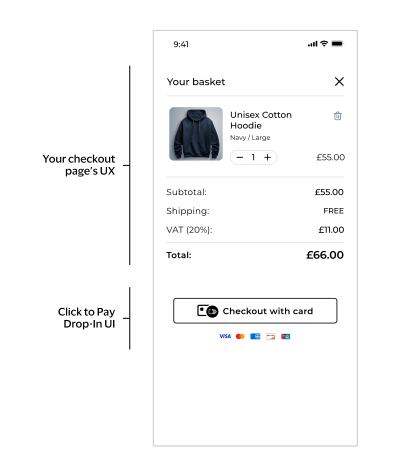
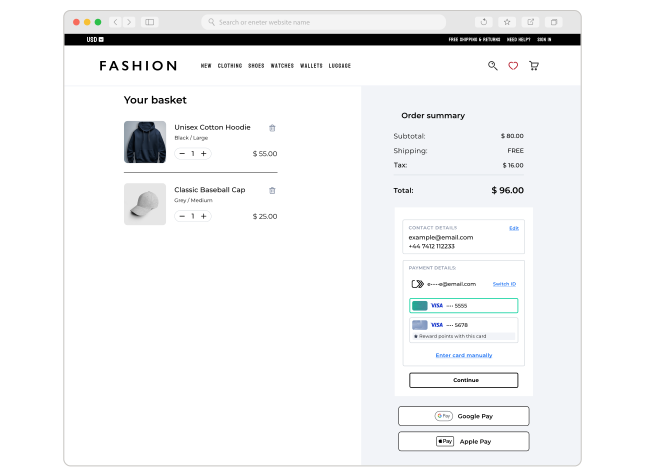
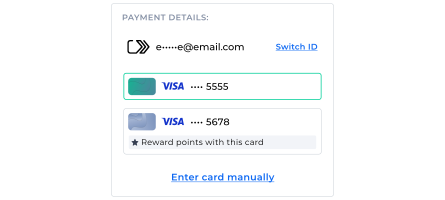
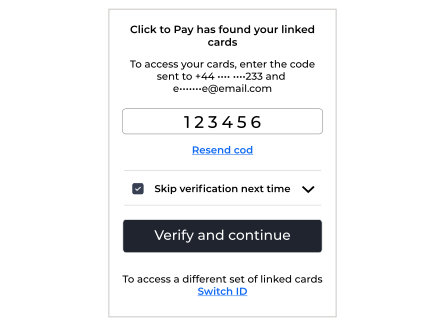
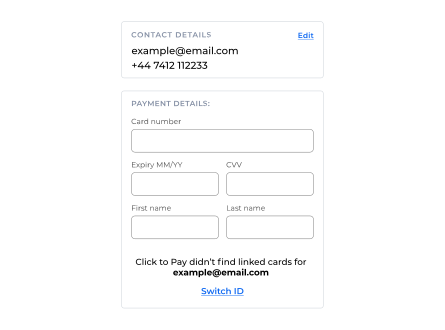
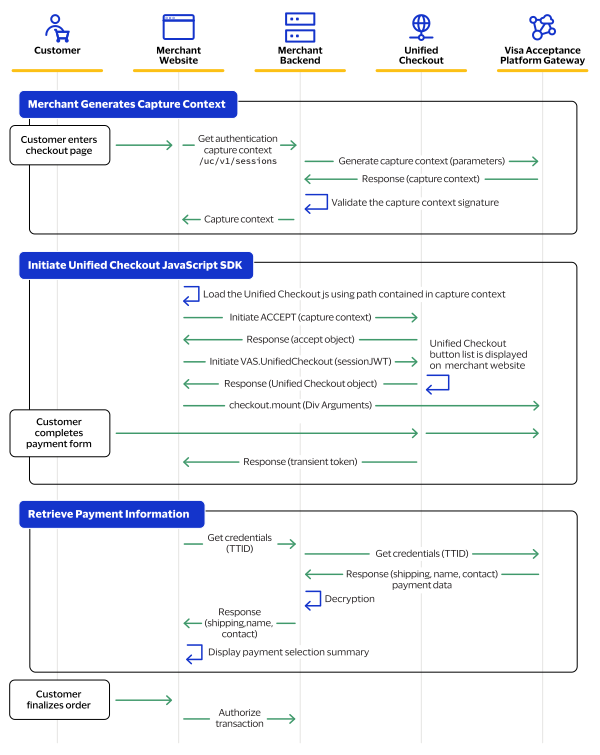
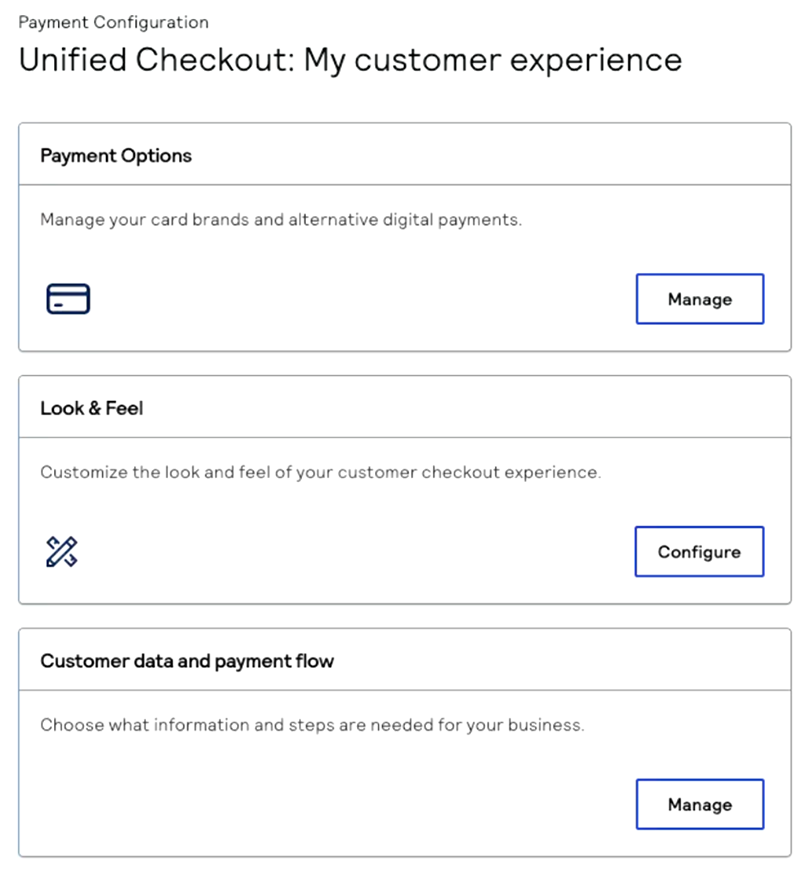
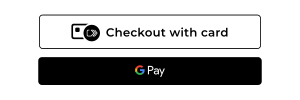
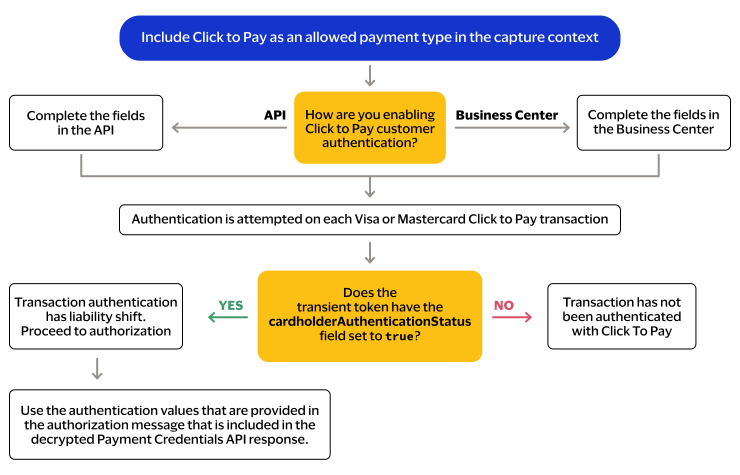
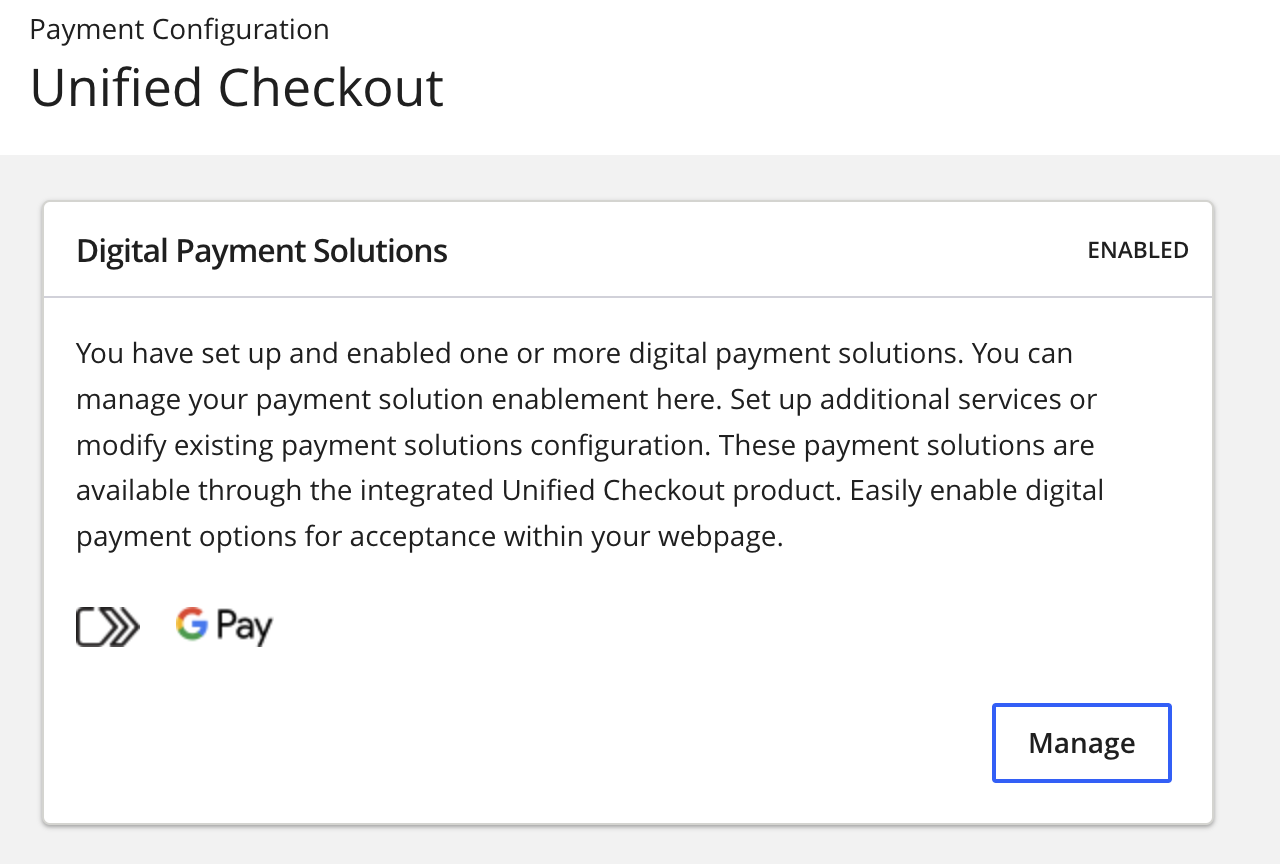 IfClick to Payis not enabled, clickOnnext toClick to Pay.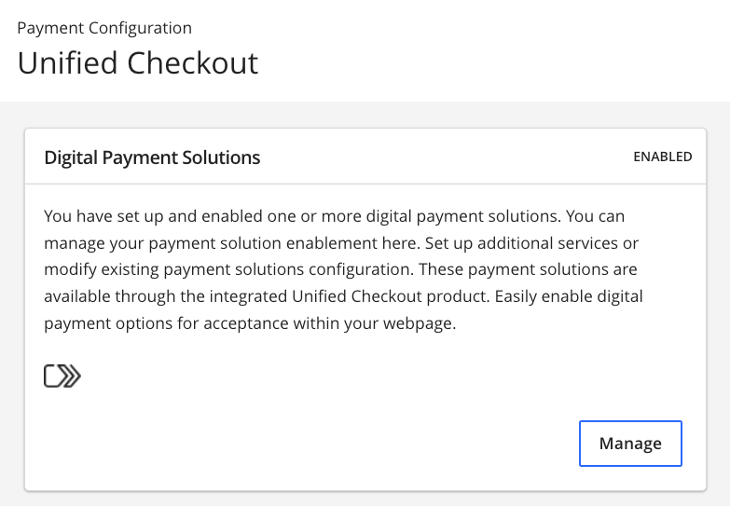
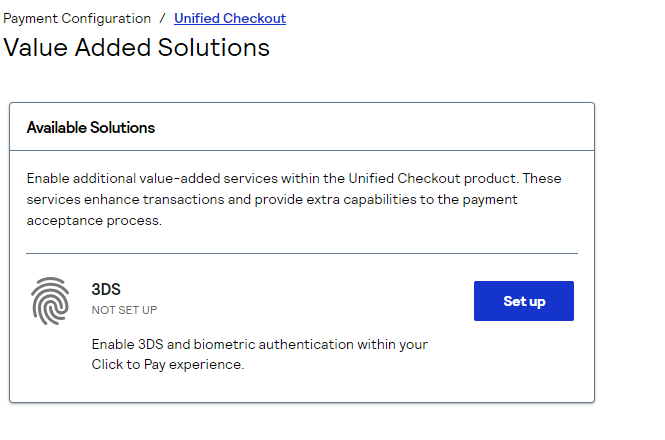
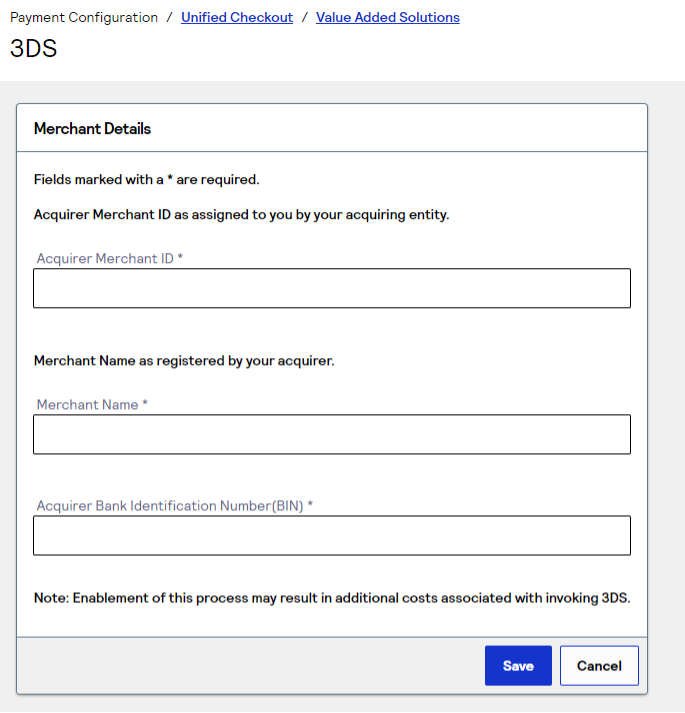


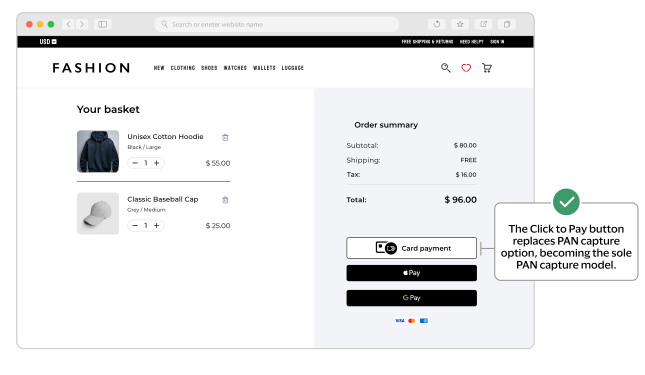
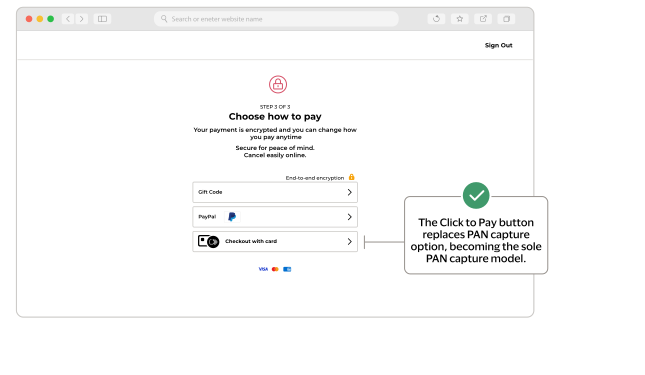
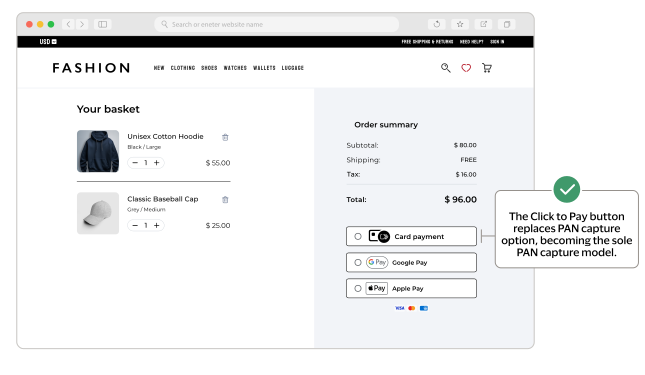
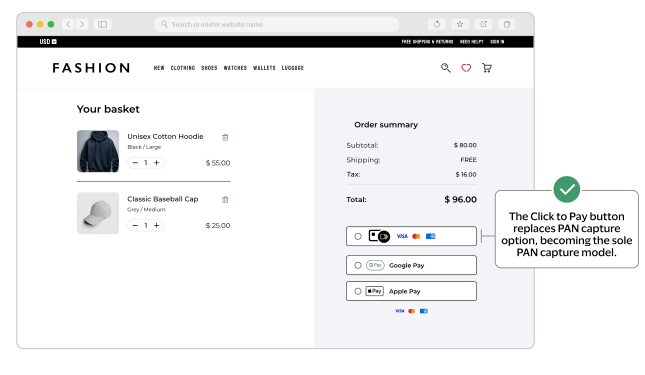
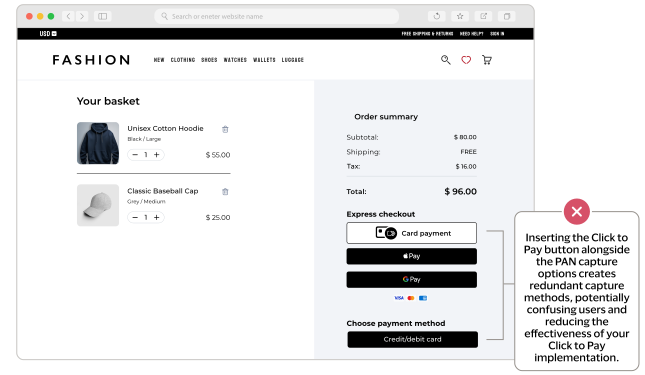
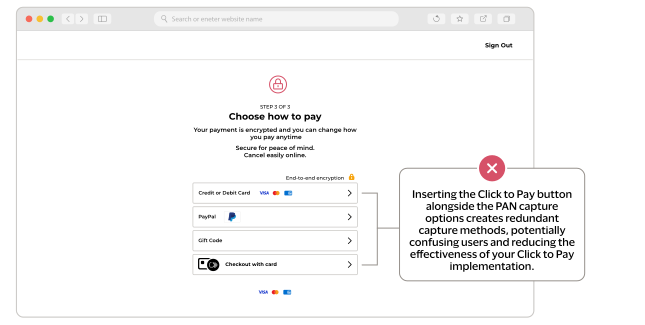
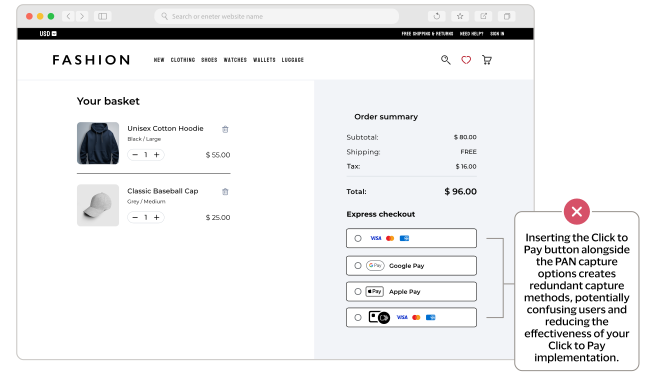
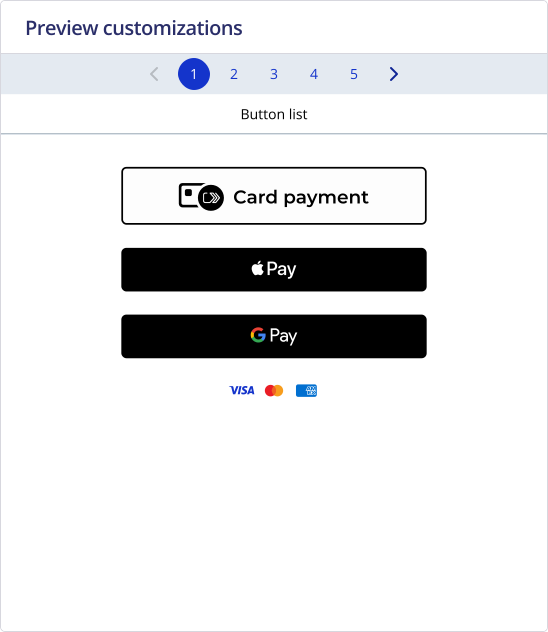
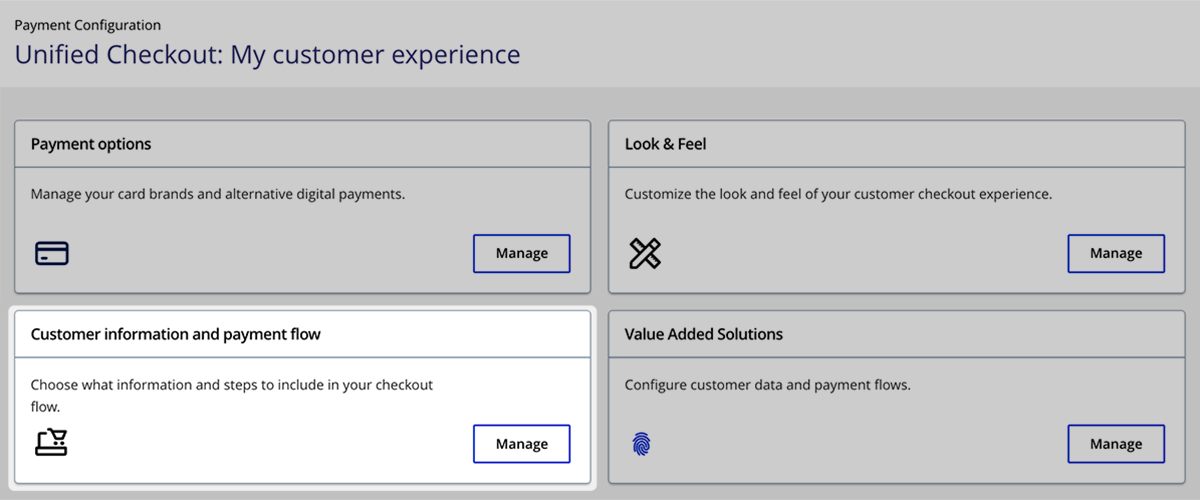
 ) next to Email address and Mobile phone number
to collect the customer email address and phone number during checkout.
) next to Email address and Mobile phone number
to collect the customer email address and phone number during checkout.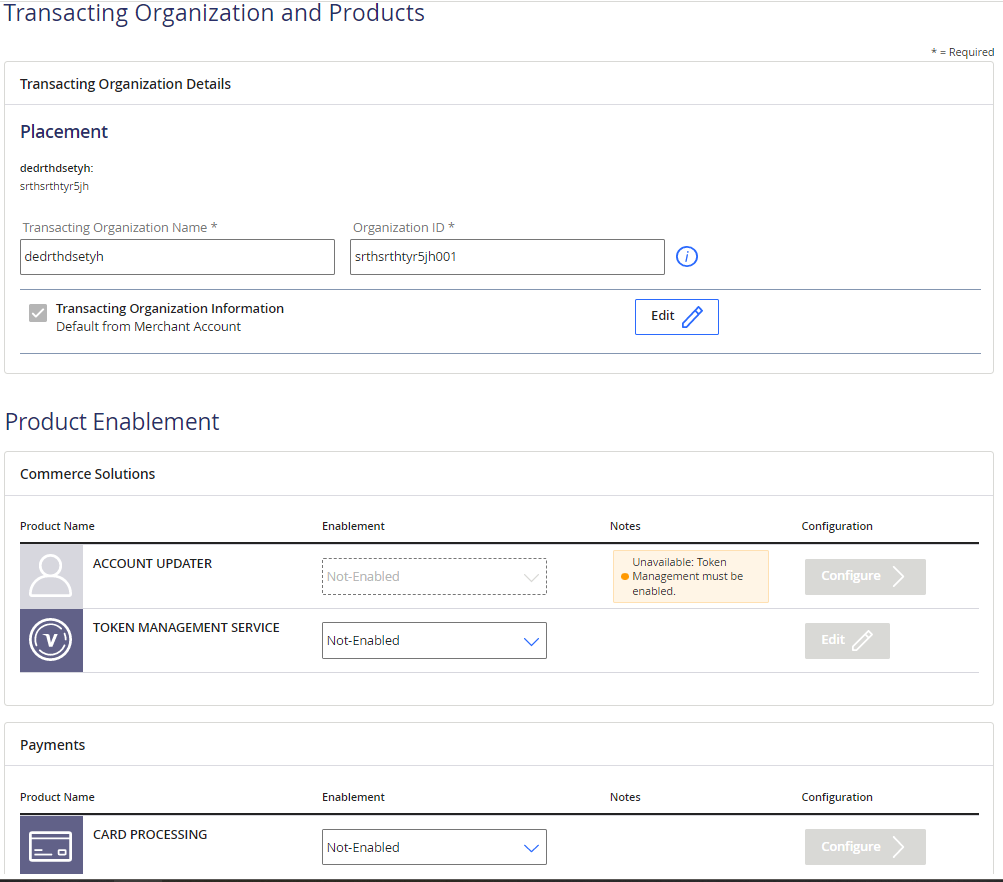

 ) to rearrange the order of the payment options.IMPORTANTSome payment options are set at the portfolio level and cannot be reordered. When you see a pin icon next to a payment option, you cannot move that payment option in the list of available methods. You must contact your portfolio administrator if you want to reorder the list of available payment options.These payment options are supported byUnified Checkout:
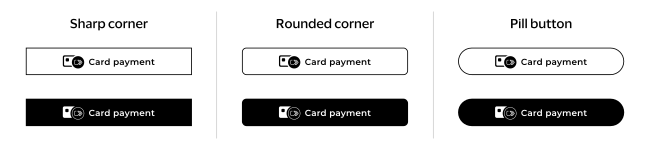
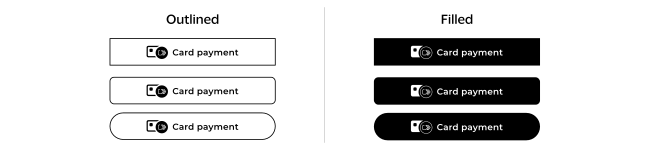
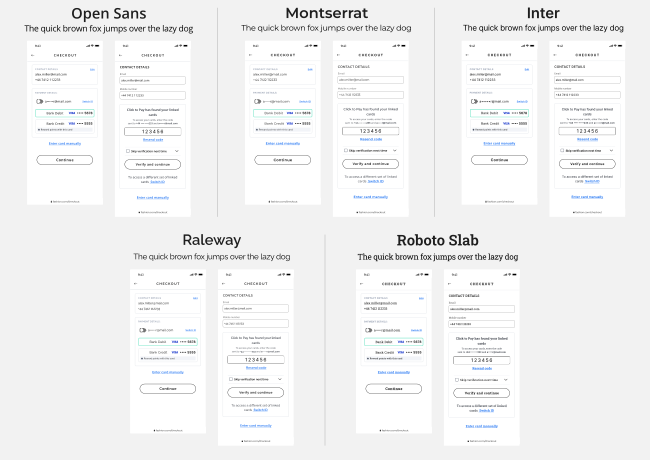
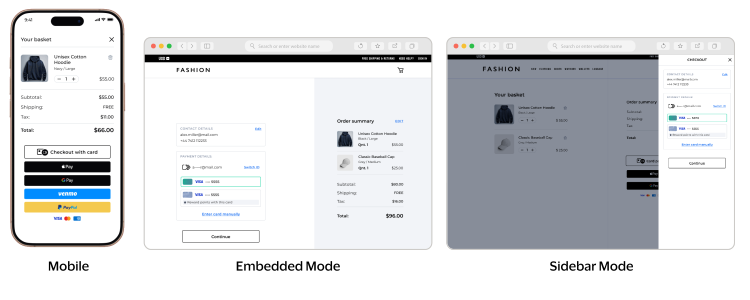
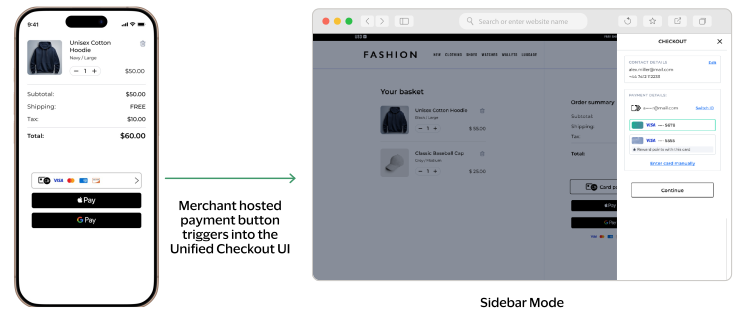
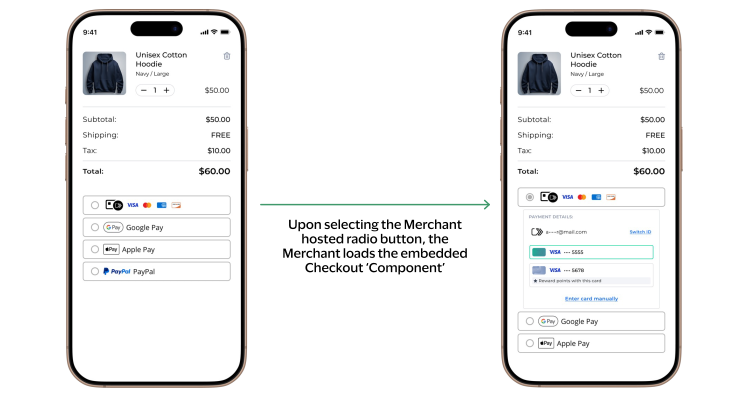


 button.