On This Page
pilot
Enabling Click to Pay
Click to Pay
To begin your integration, you must first enable
Click to Pay
.
Click to Pay
is a digital payment solution that allows customers
to pay with their preferred card network and issuer without entering their card details
on every website. Customers can use Visa, Mastercard, and American Express cards to
streamline their purchase experience. Click to Pay
provides a fast,
secure, and consistent checkout experience across devices and browsers.Follow these
steps to enable in
Click to Pay
on Unified Checkout
:- Log in to theBusiness Center:Production URL:If you are unable to access this page, contact your sales representative.
- In theBusiness Center, go to the left navigation panel and choosePayment Configuration>Unified Checkout. TheUnified Checkoutcustomer experience page appears:
Figure:
Unified CheckoutCustomer Experience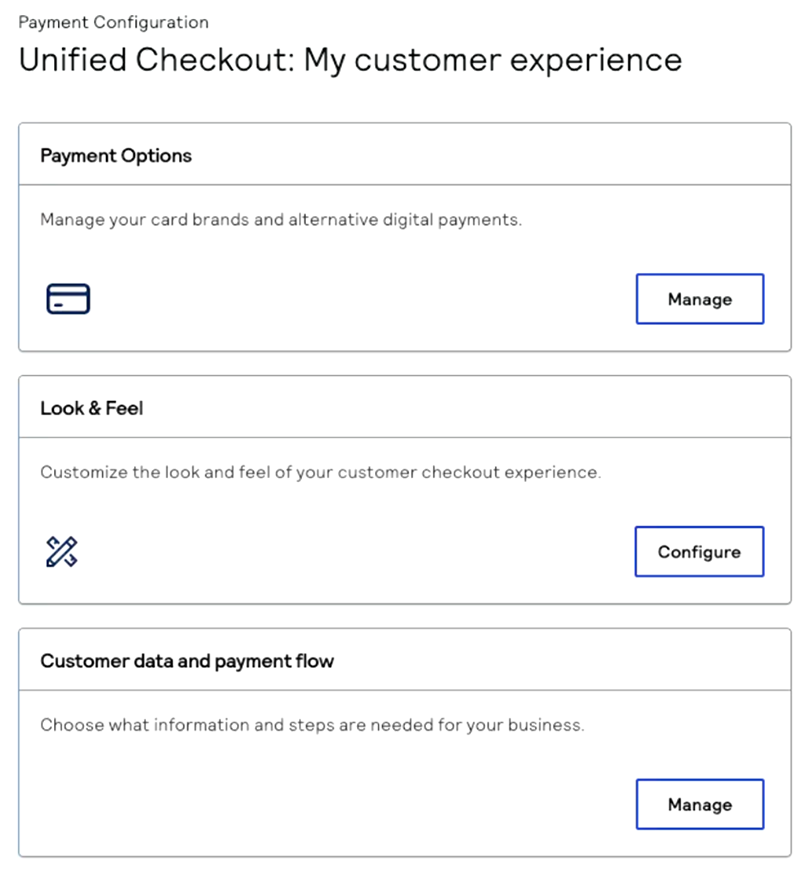
- In the Payment Options section, clickManage. The Payment Options page appears.
- ClickManagenext toClick to Pay. TheClick to Payconfiguration page appears.
- Enter your business name and website URL.
- ClickSubmit.
- Contact your implementation contactor technical account managerto request that you be enabled for tokenization withinClick to Pay. Your implementation contactor technical account managerwill confirm that you were configured successfully and that you can now accept digital payments withClick to Pay.IMPORTANTClick to Payuses network tokenization for transactions. These network tokens are stored in the vault of the token requestor ID (TRID) for the card scheme.