On This Page
Acceptance Devices | Tap to Pay on iPhone Solution Integration Guide
This section describes how to use this guide and where to find further
information.
- Audience and Purpose
- This guide is written for application developers who want to integrate the Acceptance Devices | Tap to Pay on iPhone software development kit (SDK) into their apps and to process contactless transactions on mobile devices.Integrating this SDK requires software development skills and the understanding of contactless payments on near-field communication (NFC)-enabled, commercial, off-the-shelf (COTS) mobile devices. You must write code that uses the SDK to integrate the Acceptance Devices | Tap to Pay on iPhone Solution into your existing payment system.
- Conventions
- These statements appear in this document:IMPORTANTAnImportantstatement contains information essential to successfully completing a task or learning a concept.WARNINGAWarningcontains information or instructions, which, if not heeded, can result in a security risk, irreversible loss of data, or significant cost in time or revenue or both.
- Customer Support
- For support information about any service, visit the Support Center:
Recent Revisions to This Document
26.10.01
- Added details about Apple marketing requirements for the app in Request the Tap to Pay on iPhone Entitlement.
- Added new SDK release. See SDK Version 3.9.1 Release Notes.
26.09.01
- Added a step for requesting entitlement for app distribution (step 4) in Request the Tap to Pay on iPhone Entitlement.
- Added new SDK release. See SDK Version 3.8.0 Release Notes.
26.06.01
- Added a device activation method and activation code sourcing requirements, and updated the code example in Activate a New Device Using an Activation Code.
- Updated the description of Store and Forward offline session refresh behavior in Check Offline Transactions Batch Status.
- Updated the batch submission method and code example in Submit Offline Transactions Batch for Authorization.
- Added new SDK release. See SDK Version 3.7.0 Release Notes.
26.04.01
- Added new SDK release. See SDK Version 3.6.0 Release Notes.Important:This release introduces architectural changes that replace several core protocols and methods. Before you can build with SDK 3.6.0, you must update integrations built with earlier SDK versions.
- Replaced these sections and added notes in the new sections about migrating to SDK 3.6.0:
- Replaced Creating anmposUIInstance with Creating an mposUIReader Instance.
- Replaced Device Enrollment with Managing Device Activation.
- Added support for a new feature in SDK 3.6.0: Enforcing Light Mode on the Device.
- Updated code examples in all payment services for SDK 3.6.0. See Tap to Pay on iPhone Payment Services.
- Added support for new payment services in SDK 3.6.0: Store and Forward Offline Transactions. This payment service requires iOS 18.4 or later.
26.03.01
- Removed "Debugger is not connected" requirement from Compatibility Requirements for iPhones.
- Applied these changes in Create anmposUIConfiguration Object:
- Added support for configuring new parameters:
- Enrollment process
- Serial Number Confirmation screen
- Updated code example to include the new parameters.
- Changed section titles:
- From Enabling Device Enrollment to Managing Device Enrollment
- From Enroll a Device to Enroll a New Device
- Added support for re-enrolling a device in Enroll a Previously Enrolled Device.
- Added new SDK release. See SDK Version 3.5.0 Release Notes.
26.02.01
This revision contains only editorial changes and no technical updates.
26.01.01
- Added new Device Enrollment section: Show Merchant Education Screens.
Introduction to Acceptance Devices | Tap to Pay on iPhone Solution
The Acceptance Devices | Tap to Pay on iPhone Solution enables you to use any compatible
iPhone as a payment acceptance device. You can integrate the Tap to Pay on iPhone
software development kit (SDK) into your iOS POS app to easily manage the payment
flow.
For information about the current version of the Tap to Pay on iPhone SDK, see the Release Notes for Tap to Pay on iPhone Solution.
Compatibility Requirements for iPhones
To accept contactless payments, your iPhone must be compatible with the Tap to Pay on
iPhone Solution. These are the requirements for a compatible iPhone:
- iPhone model XS or later
- iOS version that is less than 1 year old (recommendation is to use the latest iOS version available)
Transaction Workflow for the Tap to Pay on iPhone Solution
This diagram shows the transaction workflow for the Tap to Pay on iPhone Solution.
Figure:
Tap to Pay on iPhone Solution Transaction Workflow
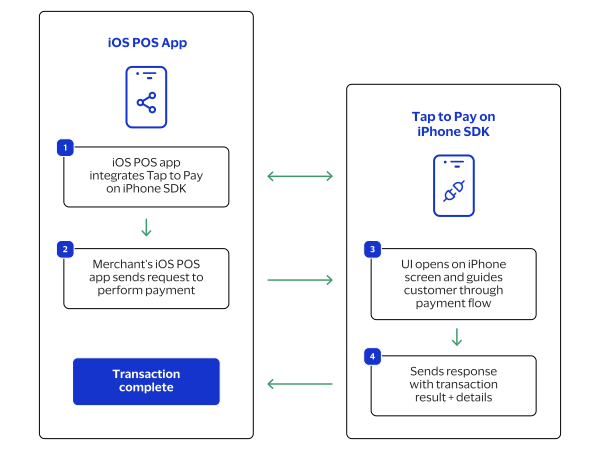
- The iOS point-of-sale (POS) app integrates to the Tap to Pay on iPhone SDK.
- The merchant's iOS POS app sends a request to the Tap to Pay on iPhone SDK to process a payment.
- The Tap to Pay on iPhone SDK user interface (UI) opens on the iPhone screen and guides the customer through the payment flow.
- The Tap to Pay on iPhone SDK sends a response with the transaction result and details to the iOS POS app.
Getting Started with the Tap to Pay on iPhone Solution
Use this information to get started with integrating the Tap to Pay on iPhone Solution.
After completing the integration, you can start accepting payments. For more
information, see Tap to Pay on iPhone Payment Services.
Configuring the Tap to Pay on iPhone SDK
Use this information to configure the Tap to Pay on iPhone SDK.
Add the Tap to Pay on iPhone SDK to Your Xcode Project
Follow these steps to add the Tap to Pay on iPhone SDK to your Xcode project.
IMPORTANT
Stay current with the latest SDK. The SDK repository is
continuously updated to make available the six latest versions. When a new version
is released, the oldest is removed and can no longer be used for new application
builds. Establish a regular process for updating to the newest available SDK version
to avoid potential build failures and to ensure that your application runs with the
latest features, performance enhancements, and security updates.
- In the Xcode app, clickFile.
- ClickAdd Package Dependencies.
- In the search bar, enter this GitHub link: acceptance-devices-ios-sdk.
- Set the Dependency Rule toUp to Next Major Version.
- Open theAdd to Targetdrop-down menu, then choose your app.
- ClickAdd Package.
Request the Tap to Pay on iPhone Entitlement
You must have an Apple Developer account to complete this task. Use this link to create an account or to sign in to
your existing account.
To use the Tap to Pay on iPhone solution, you must request the Tap to Pay on iPhone
entitlement from Apple and configure your application to use it.
IMPORTANT
When marketing your app, you must follow Apple's marketing guidelines for
Tap to Pay on iPhone. Use Apple's marketing toolkit to help ensure your materials
meet these requirements. For more information, see Marketing guidelines for developers in the
Apple Developer documentation.
- Configure your application to use the Tap to Pay on iPhone entitlement. For more information, see Setting up Tap to Pay on iPhone in the Apple Developer documentation.
- Request entitlement for app distribution by responding to the confirmation email you receive after your initial entitlement request.
Step Result
The Apple provisioning team provides you with the next steps required to begin the public distribution review process and approve your app for production distribution.
Create a Sandbox Apple Account to Test Your Integration
Before you can test your Tap to Pay on iPhone integration in a sandbox environment,
you must create a Sandbox Apple account.
Follow these steps to create a Sandbox Apple Account.
- See the Apple Developer documentation: Create a Sandbox Apple Account.
- Sign in to your Sandbox Apple account from the device on which you will test transactions.
Generating a Secret Key for an Existing Merchant ID
Use this information to generate a secret key for an existing merchant ID (MID) in the
Business Center
or by using a REST API request. The secret key and MID are
required values that you must enter in the mposUIReader
instance that
you create.Generate a Secret Key for an Existing Merchant ID in the Business Center
You can generate a secret key for an existing merchant ID (MID) in the
Business Center
. You use these values when creating the
mposUIReader
instance.Follow these steps to generate a secret key for an existing MID in the
Business Center
.- In theBusiness Center, go to the left navigation panel and choosePayment Configuration > Key Management. The Key Management page appears.
- From the Merchant drop-down list, choose a merchant ID.
- ClickGenerate Key.
- In the Recommended Key Types list, scroll down and chooseAcceptance Devices Secret Key.
- ClickGenerate Key. The Key Generation page appears.
- ClickGenerate Key. Your MID and secret key appear on the page.
- Click theCopyorDownloadicon to obtain the MID and secret key.
ADDITIONAL INFORMATION
IMPORTANTIf you choose to copy the secret key instead of downloading it, save the information locally because you cannot return to theBusiness CenterKey Generation page to obtain the same secret key. You must restart the process to obtain a new secret key.
Generate a Secret Key for an Existing Merchant ID Using a REST API Request
You can use a REST API request to generate a secret key for an existing merchant ID
(MID). You must enter this value in the
mposUIReader
instance that you
create.You must authenticate each request that you send to a
Visa Acceptance Solutions
API. To
authenticate an API request, you can use a REST shared secret key or a REST certificate.
For more information about authentication requirements, see the .Endpoints:
Test:
POST
https://apitest.visaacceptance.com
/kms/v2/keys-sym-posProduction:
POST
https://api.visaacceptance.com
/kms/v2/keys-sym-posRequired Fields to Generate a Secret Key for an Existing Merchant ID Using a REST API
Request
This field is required to generate a secret key for an existing merchant ID when using a REST API
request:
- keyInformation.organizationId
REST Example: Generate a Secret Key for an Existing Merchant ID Using a REST API
Request
Request
{
    "keyInformation":
    [
        {
            "organizationId": "transacting_MID"
        }
    ]
}
Response to a Successful Request
{
    "submitTimeUtc": "2023-08-07T13:07:17Z",
    "status": "ACCEPTED",
    "keyInformation": [
      {
           "organizationId": "transacting_MID",
           "externalOrganizationId": "MerchantId",
           "key": "SecretKey",
           "keyId": "af922a42-6d2c-41fd-92f7-09d908647de4",
           "status": "ACTIVE",
           "expirationDate": "2033-08-07T13:07:17Z"
      }
   ]
}
Creating an mposUIReader Instance
mposUIReader
Instance Use this information to create and configure an
mposUIReader
instance.
Before creating this instance, you must first create Credentials
and
Configuration
objects.Create an mposUIReader
Credentials Object
mposUIReader
Credentials
ObjectBefore starting this task, obtain a merchant ID and secret key. You use these
values when creating the
Credentials
object.IMPORTANT
Things to know about migrating from SDK 3.5.0 to SDK 3.6.0:
- Theenvironmentparameter was removed from theCredentialsobject.
- Use the standaloneMposEnvironmentenum, with the value.liveor.test, when callingactivate().
- Themerchantparameter was renamed tomerchantId.
The
Credentials
object is required to access the functionality of
the Tap to Pay on iPhone SDK. Before you can create an mposUIReader
instance, you must create the Credentials
object.- ImportMposUI.
- Create aCredentialsobject.
- Set themerchantIdfield value to the merchant ID that you obtained.
- Set thesecretfield value to the secret key that you obtained.import MposUI let credentials = try Credentials(merchantId: "MerchantId", secret: "SecretKey")
Create an mposUIReader Configuration Object
mposUIReader
Configuration
ObjectBefore you can create the
mposUIReader
instance in the Tap to Pay on iPhone SDK,
you must create the Configuration
object.Use the
Configuration
object to configure these parameters for the
mposUIReader
instance:- Configure these Summary screen features:
- Refund a transaction (.refundTransaction).
- Send a receipt by email (.sendReceiptViaEmail).
- Capture a transaction (.captureTransaction).
- Increment a transaction (.incrementTransaction).
- Retry a failed transaction (.retryTransaction).
- Configure the Summary screen so that it can be skipped (.skipSummaryScreen). The default setting is to show the Summary screen (.displayIndefinitely).
- Configure the signature capture so that it prints on the paper receipt (.onReceipt) or is skipped (.none). The default setting is on-screen signature capture.
- Configure the device activation process to prompt the merchant to enter the serial number of a previously activated device (.manualInput). The default setting is to show a list of previously activated devices and prompt the merchant to choose a device from the list (.deviceList).
- Configure the Serial Number Confirmation screen to be skipped (.skip). The default setting is to show the screen (.showWithSerialNumber).
- Create theConfigurationobject.let configuration = Configuration(summaryFeatures: [.sendReceiptViaEmail, .refundTransaction, .captureTransaction, .incrementTransaction, .retryTransaction], resultConfiguration: .displayIndefinitely, signatureCapture: .onScreen, enrollmentConfiguration: .init(serialNumberInputMethod: deviceList, confirmationScreenOption: showWithSerialNumber) )
Create an mposUIReader Instance
mposUIReader
InstanceBefore you can create the
mposUIReader
instance, you must create
and configure the Configuration
object.IMPORTANT
Things to know about migrating from SDK 3.5.0 to SDK 3.6.0: If your app
has activated devices in production, use the migration builder to preserve existing
activations. This step migrates the device state from the old storage location to
the new Apple Keychain-backed storage location and merchants do not need to
reactivate their
devices.
Both builders return the samelet reader: MposUIReader = await mposUiBuilder( credentials: credentials, environment: .live, configuration: configuration )
MposUIReader
type. When
all of your in-production merchants have upgraded to and used SDK 3.6.0 at least one
time, switch to mposUIReaderBuilder
in a future release.- CallmposUIReaderBuilderwith theConfigurationobject to create anmposUIReaderinstance.let reader: MposUIReader = await mposUIReaderBuilder( configuration: configuration )
Managing Device Activation
Before you can use a device to process transactions, it must be activated. Activation
registers the device with the payment platform. Use this information to manage device
activation in the Tap to Pay on iPhone SDK.
IMPORTANT
Things to know about migrating from SDK 3.5.0 to SDK 3.6.0:
- The termEnrollmentwas replaced withActivationthroughout the SDK.
- ThemposUI.enroll()method was replaced withreader.activation(), followed byactivation.activate(credentials:environment:).
- ThemposUI.enroll(with: serialNumber)method was replaced withactivation.activate(credentials:environment:deviceId:).
- ThemposUI.enrollmentStatus()method was replaced withreader.activationStatus, which is now an asynchronous property, not a method.
- The.enrollingintermediate status no longer exists.
- Update your application code to handle these new result cases:.alreadyActivatedand.activatedToAnotherMerchant.
Activate a New Device Using Credentials
Use this information to activate a new device using credentials. When you activate
the device, specify whether the device is used in the production environment or the
sandbox environment.
In the code example, the
environment
parameter is set to
.live
so that the device can be used to process real
transactions. To activate a device for use in sandbox testing, set the
environment
parameter to .test
.- Callreader.activation()to get anMposUIActivationobject, and then callactivate(credentials:environment:)with credentials and your chosen environment.let activation = try await reader.activation() let result: ActivationResult = await activation.activate( credentials: credentials, environment: .live ) switch result { case .success(let device, let isNewDevice): print("Merchant: \(device.merchantId)") print("Device ID: \(device.deviceId)") print("Env: \(device.environment)") print("Currencies: \(device.supportedCurrencies)") case .cancelledByUser: print("Activation cancelled.") case .error(let developerInfo): print("Activation failed. Info: \(developerInfo)") @unknown default: break }
Activate a New Device Using an Activation Code
Use this information to activate a new device using an activation code. The
merchant can generate an activation code in the
Business Center
. The code is
valid for 24 hours.There are two options for using an activation code to activate a new device. The
merchant can enter the activation code on the device screen or the activation code
can be passed programmatically.
IMPORTANT
The activation code must be sourced from a trusted backend
channel and must never be logged or stored on the device.
In the code example, the
environment
parameter in the
activateWithOtp(environment:)
call is set to
.live
so that the device can be used to process real
transactions. To activate a device for use in sandbox testing, set the
environment
parameter to .test
.- Callreader.activation()to get anMposUIActivationobject, and then callactivateWithOtp(environment:)with your chosen environment.let activation = try await reader.activation() let result: ActivationResult = await activation.activateWithOtp( environment: .live, otp: nil ) switch result { case .success(let device, let isNewDevice): print("Activated. Merchant: \(device.merchantId)") case .cancelledByUser: print("Activation cancelled.") case .invalidOTP(let developerInfo): print("Invalid OTP. Info: \(developerInfo)") case .error(let developerInfo): print("Activation failed. Info: \(developerInfo)") @unknown default: break }
Reactivate a Previously Activated Device Using Credentials
Use this information to reactivate a previously activated device. As shown in the
code example, use credentials and a stored serial number (
deviceId
.
Providing the stored device ID streamlines the activation workflow by eliminating
the need for the merchant to manually select or enter the device ID during
activation.In the code example, the
environment
parameter in the
activate(credentials:environment:deviceId:)
call is set to
.live
so that the device can be used to process real
transactions. To activate a device for use in sandbox testing, set the
environment
parameter to .test
.- Callreader.activation()to get anMposUIActivationobject, and then callactivate(credentials:environment:deviceId:)with credentials, your chosen environment, and the stored device ID.let activation = try await reader.activation() let result: ActivationResult = await activation.activate( credentials: credentials, environment: .live, deviceId: "deviceId" ) switch result { case .success(let device, let isNewDevice): print("Reactivated. Merchant: \(device.merchantId)") print("Device ID: \(device.deviceId)") case .cancelledByUser: print("Activation cancelled.") case .error(let developerInfo): print("Activation failed. Info: \(developerInfo)") @unknown default: break }
Reactivate a Previously Activated Device Using an Activation Code
Use this information to reactivate a previously activated device. As shown in the
code example, use an activation code and a stored serial number
(
deviceId
. Providing the stored device ID streamlines the
activation workflow by eliminating the need for the merchant to manually select or
enter the device ID during activation.The activation code can be generated in the
Business Center
and is valid for
24 hours.There are two options for using an activation code during the device reactivation
process. The merchant can enter the activation code on the device screen or the
activation code can be passed programmatically.
IMPORTANT
The activation code must be sourced from a trusted backend
channel and must never be logged or saved on the device.
In the code example, the
environment
parameter in the
activateWithOtp(environment:deviceId:)
call is set to
.live
so that the device can be used to process real
transactions. To activate a device for use in sandbox testing, set the
environment
parameter to .test
.- Callreader.activation()to get anMposUIActivationobject, and then callactivateWithOtp(environment:deviceId:)with your chosen environment and the stored device ID.let activation = try await reader.activation() let result: ActivationResult = await activation.activateWithOtp( environment: .live, deviceId: "deviceId" ) switch result { case .success(let deviceId, let isNewDevice, let supportedCurrencies): print("Activation successful. Device ID: \(deviceId)") case .cancelledByUser: print("Activation cancelled.") case .alreadyActivated: print("Device is already activated for this merchant.") case .activatedToAnotherMerchant: print("Device is activated to a different merchant.") case .error(let developerInfo): print("Activation failed. Info: \(developerInfo)") }
Check Activation Status
You can check the activation status only for a previously activated device.
Use the
activationStatus
property to check whether the device is
activated.let status: ActivationStatus = await reader.activationStatus switch status { case .activated(let info): print("Merchant: \(info.merchantId)") print("Device: \(info.deviceId)") print("Env: \(info.environment)") print("Currencies: \(info.supportedCurrencies)") case .notActivated: print("Device not activated. Please activate the device.") }
Show Merchant Education Screens
When a device is activated successfully, the Merchant Education screens must show on the
device. The Merchant Education screens also must be accessible in your app's
Settings or Help section.
Use Apple's
ProximityReaderDiscovery
object to show the Merchant
Education screens. This object provides the UI with information about how to use Tap
to Pay on iPhone.Enforcing Light Mode on the Device
Use this information to configure the app to always display in Light Mode. When Dark
Mode is enabled on the device, enforcing Light Mode for the app overrides the device
setting and ensures high-contrast visibility for payment-related screens.
- Add this key-value pair to the app's Info.plist file.<key>UIUserInterfaceStyle</key> <string>Light</string>
Tap to Pay on iPhone Payment Services
This section describes the payment services featured in the Tap to Pay on iPhone
Solution.
Sale
Use this information to process a sale transaction. This transaction combines an
authorization and a capture into a single transaction.
When an internet connection is not available, you can use the Store and Forward
feature to process offline sale and stand-alone credit transactions.
- Create aChargeParametersobject and callstartChargeTransaction(with:).// Throws MposUIReaderError.notActivated if device is not activated let online = try await reader.mposUIOnline() let chargeParameters = ChargeParameters(amount: Decimal(1.00), currency: .USD, customIdentifier: "yourReferenceForTheTransaction") let charge = await online.startChargeTransaction(with: chargeParameters) switch charge { case .success(let transaction): print("Transaction successful: \(transaction.identifier)") case .failure(let error): print("Transaction failed: \(error)") @unknown default: break }
Refund
Use this information to process a refund for a full or partial transaction amount by using a
reference to the original transaction. This transaction is also called a
linked
refund
. This Acceptance Devices solution also supports stand-alone
credits.- Get the online payment service and callrefundTransaction(withID:partiallyWithAmount:)with the original transaction identifier.// Throws MposUIReaderError.notActivated if device is not activated let online = try await reader.mposUIOnline() let linkedRefund = await online.refundTransaction( withID: "transactionIdentifier", partiallyWithAmount: (Decimal(1.00), .USD) ) switch linkedRefund { case .success(let transaction): print("Refund successful.") case .cancelledByUser: print("Refund cancelled.") case .error(let developerInfo): print("Refund failed. Info: \(developerInfo)") }
Stand-Alone Credit
Use this information to process a stand-alone credit. This transaction is used to process a
credit without reference to the original transaction. The customer is required to
present their payment card for this transaction.
When an internet connection is not available, you can use the Store and Forward feature to
process offline sale and stand-alone credit transactions.
WARNING
Use a linked refund transaction whenever possible. When processing
a stand-alone credit, there is no limit on the credit amount because there is no
reference to the original transaction amount.
- Create aRefundParametersobject and callstartStandaloneRefundTransaction(with:).// Throws MposUIReaderError.notActivated if device is not activated let online = try await reader.mposUIOnline() let refundParameters = RefundParameters(amount: Decimal(1.00), currency: .USD, customIdentifier: "yourReferenceForTheTransaction") let refund = await online.startStandaloneRefundTransaction(with: refundParameters) switch refund { case .success(let transaction): print("Refund successful: \(transaction.identifier)") case .failure(let error): print("Refund failed: \(error)") @unknown default: break }
Pre-Authorization
Use this information to process a pre-authorization for an initial amount. This
transaction places a temporary hold on the customer's payment card. The transaction
amount can be captured at a later time.
Most authorizations expire in 5 to 7 days. The issuing bank sets this period of time.
When an authorization expires with the issuing bank, your bank or processor might
require you to re-submit an authorization request and include a request for capture
in the same message.
- Create the online payment service, create aChargeParametersobject withautocaptureset tofalse, and callstartChargeTransaction(with:).// Throws MposUIReaderError.notActivated if device is not activated let online = try await reader.mposUIOnline() let chargeParameters = ChargeParameters(amount: Decimal(1.00), currency: .USD, customIdentifier: "yourReferenceForTheTransaction", autocapture: false) let charge = await online.startChargeTransaction(with: chargeParameters)
Incremental Authorization
Use this information to process an incremental authorization. This transaction can be applied
to an existing pre-authorization request to increase the authorized amount before
capture.
- Create the online payment service and callincrementTransaction(withID:withAmount:)with the transaction identifier and additional amount.// Throws MposUIReaderError.notActivated if device is not activated let online = try await reader.mposUIOnline() let increment = await online.incrementTransaction( withID: "transactionIdentifier", withAmount: (Decimal(1.00), .USD) ) switch increment { case .success(let transaction): print("Increment successful.") case .cancelledByUser: print("Increment cancelled.") case .error(let developerInfo): print("Increment failed. Info: \(developerInfo)") }
Capture
Use this information to capture a pre-authorized transaction. The capture request
references the approved pre-authorization request.
- Create the online payment service and callcaptureTransaction(withID:partiallyWithAmount:)with the transaction identifier and capture amount.// Throws MposUIReaderError.notActivated if device is not activated let online = try await reader.mposUIOnline() let capture = await online.captureTransaction( withID: "transactionIdentifier", partiallyWithAmount: (Decimal(1.00), .USD) ) switch capture { case .success(let transaction): print("Capture successful.") case .cancelledByUser: print("Capture cancelled.") case .error(let developerInfo): print("Capture failed. Info: \(developerInfo)") }
Sale with On-Reader Tipping
Use this information to process a sale with on-reader tipping. At the start of each
transaction, the device prompts the customer to add a tip by showing suggested tip
amounts and a no-tip option. The customer chooses or enters an amount before
presenting their payment card.
- Create the online payment service.
- Create aTippingconfiguration for the on-reader tip options.
- Add the tipping configuration to theChargeParametersobject and callstartChargeTransaction(with:).// Throws MposUIReaderError.notActivated if device is not activated let online = try await reader.mposUIOnline() // Percentage choices let tipConfig = Tipping.percentageChoice([5, 10, 15]) // Custom tip amount input // let tipConfig = Tipping.input(.tipAmount()) // Total amount including tip // let tipConfig = Tipping.input(.totalAmount()) let chargeParameters = ChargeParameters(amount: Decimal(1.00), currency: .USD, customIdentifier: "yourReferenceForTheTransaction", tip: tipConfig) let charge = await online.startChargeTransaction(with: chargeParameters)
Check Transaction Status Using showSummary
showSummary
To submit a check transaction status request, you must have the
transactionIdentifier
value for the transaction that you want
to check.Use the check transaction status request to obtain response data for a transaction
that was lost or timed out.
When you send the request using the
showSummary
method, the
transaction details are shown on the Summary screen.- Create the online payment service and callshowSummary(forID:)with the transaction identifier.// Throws MposUIReaderError.notActivated if device is not activated let online = try await reader.mposUIOnline() let summary = await online.showSummary(forID: "transactionIdentifier") switch summary { case .success(let transaction): print("Transaction status: \(transaction.identifier)") case .error(let developerInfo): print("Failed to retrieve summary. Info: \(developerInfo)") }
Check Transaction Status Using lookupTransaction
lookupTransaction
To submit a check transaction status request, you must have the
transactionIdentifier
value for the transaction that you want
to check.Use the check transaction status request to obtain response data for a transaction
that was lost or timed out.
When you send the request using the
lookupTransaction
method, the
transaction details are shown in the transaction
object.- Create the online payment service and calllookupTransaction(forID:)with the transaction identifier.// Throws MposUIReaderError.notActivated if device is not activated let online = try await reader.mposUIOnline() let result = await online.lookupTransaction(forID: "transactionIdentifier") switch result { case .success(let transaction): print("Transaction found: \(transaction.identifier)") case .notFound: print("Transaction not found.") case .networkError(let developerInfo): print("Network error. Info: \(developerInfo)") case .unexpected(let developerInfo): print("Unexpected error. Info: \(developerInfo)") }
Store and Forward Offline Transactions
Use this information to use the Store and Forward feature to process offline sale and
stand-alone credit transactions when an internet connection is not available.
WARNING
Using offline transaction payment services involves risk. Because these
transactions are not authorized in real time, you assume responsibility for potential
issues such as failed transactions, increased fraud, and higher chargeback rates. Only
use offline transactions when necessary such as during temporary internet outages.
Whenever possible, it is recommended to process online sale transactions to ensure
secure and immediate authorization.
IMPORTANT
Store and Forward requires iOS 18.4 or later.
Offline Sale
Use this information to process a Store and Forward offline sale transaction. This
transaction combines an authorization and a capture into a single transaction. When
an internet connection is not available, the transaction is stored offline.
Stored offline transactions must be submitted for authorization when an internet
connection is available.
WARNING
Whenever possible, process online sale transactions to ensure secure and
immediate authorization. Using offline transaction payment services involves
risk. Because these transactions are not authorized in real time, you assume
responsibility for potential issues.
- Create the offline payment service.
- Create aChargeParametersobject for the offline sale.
- CallstartChargeTransaction(with:)to store the sale transaction offline.// Throws MposUIReaderError.notActivated if device is not activated let offline = try await reader.mposUIOffline() let chargeParameters = ChargeParameters(amount: Decimal(1.00), currency: .USD, customIdentifier: "yourReferenceForTheTransaction") let result = await offline.startChargeTransaction(with: chargeParameters) switch result { case .offlineSuccess(let offlineTransaction): print("Stored offline. ID: \(offlineTransaction.id), amount: \(offlineTransaction.amount)") case .failure(let error): print("Transaction failed: \(error)") @unknown default: break }
Offline Stand-Alone Credit
Use this information to process a Store & Forward offline stand-alone credit
transaction. When an internet connection is not available, the transaction is stored
offline.
Stored offline transactions must be submitted for authorization when an internet
connection is available.
- Create the offline payment service.
- Create aRefundParametersobject for the offline stand-alone credit.
- CallstartStandaloneRefundTransaction(with:)to store the stand-alone credit transaction offline.// Throws MposUIReaderError.notActivated if device is not activated let offline = try await reader.mposUIOffline() let refundParameters = RefundParameters(amount: Decimal(1.00), currency: .USD, customIdentifier: "yourReferenceForTheTransaction") let result = await offline.startStandaloneRefundTransaction(with: refundParameters) switch result { case .offlineSuccess(let offlineTransaction): print("Refund stored offline. ID: \(offlineTransaction.id)") case .failure(let error): print("Refund failed: \(error)") @unknown default: break }
Check Offline Transactions Batch Status
Use this information to retrieve a summary of Store and Forward offline transactions
that are pending submission. The summary shows how many transactions are pending
upload, when the session expires, and the cumulative (total monetary) amount of the
stored transactions.
The offline session is valid for 24 hours after the last online transaction is
complete. If the offline session expires, the device must go online before you can
continue to perform Store and Forward transactions. The SDK refreshes the offline
session automatically when the Store and Forward component initializes on an
activated device (for example, after app launch), when an online transaction is
performed, or when the integrator calls the
syncSession()
method.When the device is rebooted or the passcode is turned off and on, the offline session
becomes invalid. To refresh the offline session, the device must go online and
perform an online transaction. After the online transaction is complete, the SDK
uses the same automatic refresh behavior described for expired sessions.
- Use the offline payment service to verify the status of the offline transactions batch.// Throws MposUIReaderError.notActivated if device is not activated let offline = try await reader.mposUIOffline() let session = await offline.getSession() print("Pending transactions: \(session.transactionCount)") print("Session expires: \(session.expirationDate)") print("Cumulative amount: \(session.cumulativeAmount)")
Retrieve Offline Transactions Pending Submission
Use this information to retrieve a list of Store and Forward offline transactions
that are pending submission for authorization.
- Use the offline payment service to retrieve the list of offline transactions that are pending submission.// Throws MposUIReaderError.notActivated if device is not activated let offline = try await reader.mposUIOffline() let transactions = offline.getTransactionList() for tx in transactions { print("[\(tx.type)] \(tx.amount) \(tx.currency) — \(tx.date)") }
Submit Offline Transactions Batch for Authorization
Use this information to submit a batch of Store and Forward offline transactions for
authorization.
After processing offline transactions, submit them for authorization as soon as an
internet connection is available. Transactions remain stored locally until they are
successfully uploaded.
IMPORTANT
The device must have an internet connection before calling the
syncSession()
method, as shown in the code example.- Confirm that an internet connection is available.
- Create the offline payment service.
- Call thesyncSession()method to submit the offline transactions batch for authorization.// Throws MposUIReaderError.notActivated if device is not activated let offline = try await reader.mposUIOffline() let result: SyncSessionResult = await offline.syncSession() switch result { case .success: print("Batch session refreshed.") case .failure(.notActivated): print("Device not activated.") case .failure(.sessionInvalidated): print("Session invalidated — re-authenticate.") case .failure(.other(let developerInfo)): print("Sync failed: \(developerInfo)") }
Email a Customer Receipt
Use this information to email the receipt for an existing transaction to a customer.
- Create the online payment service and callsendEmailReceipt(forID:)with the transaction identifier.// Throws MposUIReaderError.notActivated if device is not activated let online = try await reader.mposUIOnline() let email = await online.sendEmailReceipt(forID: "transactionIdentifier") switch email { case .success: print("Receipt sent.") case .cancelByUser: print("Receipt cancelled.") case .error(let developerInfo): print("Failed to send receipt. Info: \(developerInfo)") }
Release Notes for Tap to Pay on iPhone Solution
These release notes are organized by release name and version, from newest to oldest.
Each release note includes these details:
- Name of release
- Type of release: app or SDK
- Version number
- Operating system: Android or iOS
- Release date: MM-DD-YYYY format
- General information
- Improvements
- New features
- Fixed issues
- Updated requirements
- Security updates
- Hot fixes
SDK Version 3.5.0 Release Notes
These release notes are for the Tap to Pay on iPhone SDK, version 3.5.0 for iOS. The
release date is 02-26-2026.
New Features
- Added a Device Selection screen that enables merchants to enroll a previously enrolled device without manually entering the serial number.
- Added support for re-enrolling a previously enrolled device by providing the stored serial number to the SDK.
Improvements
- Added the ability to configure the enrollment process to show a list of previously enrolled devices or to enable the merchant to enter the device serial number manually.
- Added the ability to configure the enrollment process to show or hide the serial number confirmation screen after successful enrollment.
- Improved the ability to debug your application during development.
- Improved error messages that can appear during transaction processing.
- Applied general improvements to the UI.
SDK Version 3.9.1 Release Notes
These release notes are for the Tap to Pay on iPhone SDK, version 3.9.1 for iOS. The
release date is 10-16-2026.
Improvements
Added a network-reachability preflight check when the Store and Forward payment service is
enabled. The check fails fast on a Wi-Fi network without internet connection and before
attempting the transaction.
Fixed Issues
- Online transactions that failed before the payment card was tapped now correctly return anetworkErrormessage.
- Tip percentage is now calculated based on the pre-tax amount instead of the tax-inclusive total.
- Fixed an issue that caused approved transactions to appear as failed or inconclusive.
- When the device loses its network connection during finalization of a transaction requiring a signature, the transaction is now correctly reported as "inconclusive" rather than as an error.
SDK Version 3.8.0 Release Notes
These release notes are for the Tap to Pay on iPhone SDK, version 3.8.0 for iOS. The
release date is 09-16-2026.
New Features
Added support for these features:
- Perform account verification requests.
- Include payment facilitator details when performing a transaction.
- Include tax details when performing a transaction.
- Include installment details for the Latin America and Caribbean (LAC) region when performing a transaction.
- Configure the maximum amount allowed for an offline transaction and the maximum amount allowed for an offline-transaction batch submitted for authorization.
- Activate a device by scanning a QR code.
Improvements
- Added support for additional languages, including right-to-left (RTL) layout for Arabic.
- Added signature capture support for offline transactions.
- Applied general improvements to the UI.
Fixed Issues
- Fixed the issue that caused American Express masked card numbers to display incorrectly on the Summary screen.
- Fixed the issue that caused a "Device already exists" error message to appear when re-enrolling a device with a previously registered serial number.
- Fixed the issue where tapping Back navigation from the Serial Number Entry screen canceled device activation instead of returning to the previous screen.
- Fixed some localization issues.
SDK Version 3.7.0 Release Notes
These release notes are for the Tap to Pay on iPhone SDK, version 3.7.0 for iOS. The
release date is 05-28-2026.
General Information
- For submitting offline transactions, replacedstartBatchUpload()method withsyncSession()method.
- Updated device activation methods.
New Features
Added support for Spanish (Spain) and Spanish (Mexico) language variants.
Improvements
- A device can now be activated without manually entering the activation code.
- Reactivating a device no longer requires uninstalling the app first.
- Improved error messages are shown during transactions.
- Applied general improvements to the UI.
SDK Version 3.6.0 Release Notes
These release notes are for the Tap to Pay on iPhone SDK, version 3.6.0 for iOS. The
release date is 04-10-2026.
General Information
The SDK 3.6.0 release introduces architectural changes that replace several core protocols and
methods. Before you build with SDK 3.6.0, update integrations built with earlier SDK
versions. Before upgrading from SDK 3.5.0, review these updated or new topics in the
integration guide:
- Creating an SDK instance: ThemposUIinstance was replaced with aMposUIReaderinstance.
- Credentials: Theenvironmentfield andCredentials.Environmenttype were removed. Use the standaloneMposEnvironmentenum.
- Device activation: The device enrollment methods were replaced with new activation methods.
- Payment services: The payment service transaction methods are now accessed by using theMposUIOnlineservice.
- Stand-alone credit: The return type for a stand-alone credit transaction was changed fromResult<Transaction, MposUIError>toRefundTransactionResult.
For more information about these topics, see Recent Revisions to This Document.
New Features
- Added support for Store & Forward transactions.
- Added support for activating a device using an activation code instead of credentials.
For more information about these topics, seeRecent Revisions to This Document.
Improvements
Applied general improvements to the UI.
Archive of Release Notes
This archive of release notes for the Tap to Pay on iPhone Solution is organized by
release name and version, from newest to oldest. For information about current releases,
see Release Notes for Tap to Pay on iPhone Solution.
Each release note includes these details:
- Name of release
- Type of release: app or SDK
- Version number
- Operating system: Android or iOS
- Release date: MM-DD-YYYY format
These are the types of release notes published:
- General information
- Improvements
- New features
- Fixed issues
- Updated requirements
- Security updates
- Hot fixes
SDK Version 3.5.0 Release Notes
These release notes are for the Tap to Pay on iPhone SDK, version 3.5.0 for iOS. The
release date is 02-26-2026.
New Features
- Added a Device Selection screen that enables merchants to enroll a previously enrolled device without manually entering the serial number.
- Added support for re-enrolling a previously enrolled device by providing the stored serial number to the SDK.
Improvements
- Added the ability to configure the enrollment process to show a list of previously enrolled devices or to enable the merchant to enter the device serial number manually.
- Added the ability to configure the enrollment process to show or hide the serial number confirmation screen after successful enrollment.
- Improved the ability to debug your application during development.
- Improved error messages that can appear during transaction processing.
- Applied general improvements to the UI.
SDK Version 3.3.0 Release Notes
These release notes are for the Tap to Pay on iPhone SDK, version 3.3.0 for iOS. The
release date is 10-31-2025.
Improvements
- Improved the error messages that can appear during transaction processing.
- Applied general improvements to UI.
Fixed Issues
- Fixed the issue that occasionally caused the Signature screen to be shown twice.
- Fixed the issue that caused the Increment button to be shown on the Summary screen after the transaction is fully refunded.
SDK Version 3.2.0 Release Notes
These release notes are for the Tap to Pay on iPhone SDK, version 3.2.0 for iOS. The
release date is 10-06-2025.
New Features
Added tip amount and total amount as tipping options.
SDK Version 3.1.0 Release Notes
These release notes are for the Tap to Pay on iPhone SDK, version 3.1.0 for iOS. The
release date is 08-18-2025.
New Features
Added the ability to look up transaction details without showing the Summary screen.
Fixed Issues
Applied general fixes to UI.