On This Page
Saving and Voiding an Order Workflow
This workflow illustrates the process of saving and then voiding an order. Voiding an
order is optional.
Figure:
Save and Void an Order Workflow
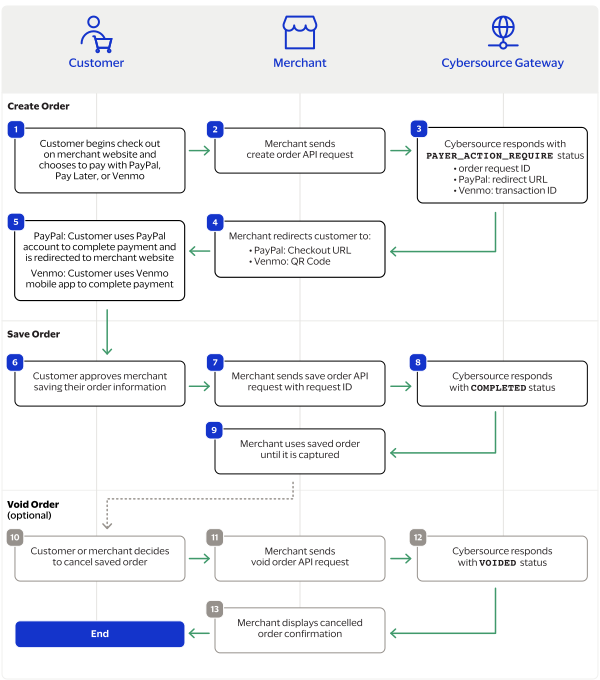
- The customer begins to check out on the merchant's website and chooses one of these payment methods:
- PayPal
- PayPal Pay Later
- Venmo
- You request a create order. For more information, see Create a PayPal Order.
- Cybersourceresponds with this information in the response message:
- PAYER_ACTION_REQUIREDstatus
- PayPal checkout redirect URL or a Venmo checkout QR code
- Order ID
- Order request ID
- You redirect the customer to the PayPal checkout URL or display the Venmo QR code. The Venmo QR code is generated by setting the transaction ID in the Venmo Java SDK.
- The customer uses their PayPal or Venmo account to complete the payment and is redirected to the merchant's checkout page.
- The customer gives the merchant consent to save the customer's payment credentials in the order.
- You send a save order API request with the order ID toCybersource. For more information, see Save an Order.
- Cybersourceresponds with aCOMPLETEDstatus.
- You can now authorize the order as many times as needed until the payment is captured.
- (Optional) The customer or merchant decides to delete the saved order with their payment credentials.
- You send a void order API request toCybersource. For more information, see Void an Order.
- Cybersourceresponds with theVOIDEDstatus.
- You display a confirmation that the order and the customer's payment credentials are no longer saved on the merchant's website.