On This Page
Getting Started with the PAX A6630 Terminal
This section describes how to get started with using the PAX A6630 payment terminal.
Ordering PAX Terminal Equipment
Use this information to order PAX terminal test and production equipment in the European
Union (EU), United Kingdom (UK), and United States (US). The ordering procedures
described here vary due to differences in regional regulations and procedures.
Ordering PAX Terminal Test Equipment in the US
If you are located within the US, you can order equipment to test your integration and
various payment workflows with the
Cybersource
Card Present Gateway.Two types of devices are available to order in this region.
- Test device
- A test device is intended for development and testing purposes only. It can be used to download applications that have been published in PAXSTORE. It cannot process live transactions.
- Use case:Order a test device if you plan to integrate the Acceptance Devices | PAX Acceptance Devices App and want to run test transactions using the Acceptance Devices app on the PAX terminal.
- Debug device
- A debug device is required when you are developing your own application. You can do these things with a debug device:
- Install Android package kits (APKs)
- Transfer files using a USB cable
- Download published applications from PAXSTORE
- Use case:Order a debug device if you plan to use the Acceptance Devices | PAX All-in-One Solution and want to integrate your custom application into this solution.
You can order this test equipment in the US:
- Test card, which can be used with a test or debug card reader.
The standard testing equipment box contains these items:
Order PAX Terminal Test Equipment in the US
Follow these steps to order PAX terminal test equipment in the US.
- To order a test device, visit the US Fulfillment page and follow the ordering instructions.
- To order a debug device, contact [email protected].
Ordering PAX Terminal Test Equipment in the EU and UK
If you are located within the EU or UK, you can order equipment to test your integration
and various payment workflows with the
Cybersource
Card Present
Gateway.One type of device is available to order in these regions.
- Debug device
- A debug device is required when you are developing your own application. You can do these things with a debug device:
- Install Android package kits (APKs)
- Transfer files using a USB cable
- Download published applications from PAXSTORE
- Use case:Order a debug device if you plan to use the Acceptance Devices | PAX All-in-One Solution and want to integrate your custom application into this solution.
You can order this test equipment in the EU and UK:
- Test card.
The standard testing equipment box contains these items:
Order PAX Terminal Test Equipment in the EU and UK
Follow this step to order PAX terminal test equipment in the EU and UK.
- Visit the Fulfillment page for your region and follow the ordering instructions:
- EU Fulfillment: When ordering test equipment from the EU, you must have your company's Value-Added Tax (VAT) ID and Economic Operators Registration and Identification (EORI) number available to enter on your order. If this information is not provided, your shipment might be delayed.
- UK Fulfillment: When ordering test equipment from the UK, you must have your company's Value-Added Tax (VAT) ID available to enter on your order. If this information is not provided, your shipment might be delayed.
Ordering PAX Terminal Production Equipment in All Regions
Production PAX terminals are designed to process live payment transactions using the
Cybersource
Card Present Gateway. Production devices are intended
for deployment in live environments and are the only type approved for market use.IMPORTANT
For security reasons, APKs cannot be installed
directly on live devices. Application updates must be delivered through PAXSTORE to
ensure a secure and controlled distribution.
For small-quantity orders, place your order directly on the Fulfillment page. For help
with bulk orders or questions about complex hardware distribution, contact [email protected].
You can order this production equipment in all regions:
The standard PAX equipment box contains these items:
Order PAX Terminal Production Equipment in All Regions
Follow this step to order PAX terminal production equipment in all
regions.
- Visit the Fulfillment page for your region and follow the ordering instructions:
- EU Fulfillment: When ordering test equipment from the EU, you must have your company's Value-Added Tax (VAT) ID and Economic Operators Registration and Identification (EORI) number available to enter on your order. If this information is not provided, your shipment might be delayed.
- UK Fulfillment: When ordering test equipment from the UK, you must have your company's Value-Added Tax (VAT) ID available to enter on your order. If this information is not provided, your shipment might be delayed.
- US Fulfillment: You are not required to provide VAT and EORI information when ordering for US fulfillment.
Signing Up for a Test or Production Account
Use this information to sign up for test (sandbox) and production (live) accounts.
Perform integration and testing in your test account. After receiving a go-live
approval, use your production account to process live transactions on the PAX
terminal.
IMPORTANT
Test credentials do not work in the production
environment, and production credentials should never be used for testing.
Sign Up for a Test or Production Account
Follow these steps to sign up for test (sandbox) and production (live)
accounts.
- Sign up for a test account.
ADDITIONAL INFORMATION
Visit the Test Account sign-up page to complete account registration. - Request a production account.
ADDITIONAL INFORMATION
Contact your Solution Delivery team. They will guide you through the go-live process and enable production processing on your PAX terminal.
Setting Up the PAX Terminal
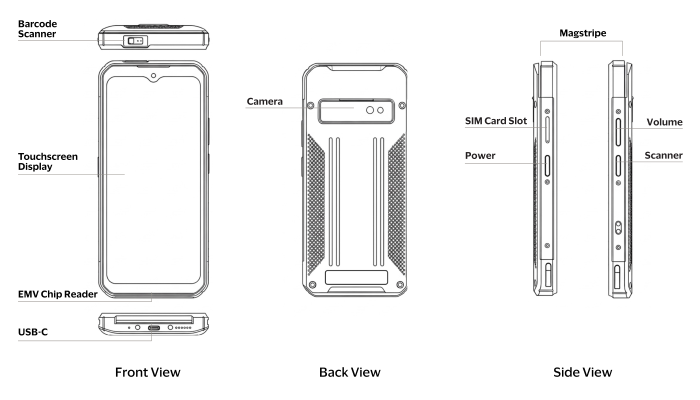
This section describes how to set up the terminal. The product drawings show the PAX
device features.
Figure:
PAX A6630 Terminal Drawings with Features Labeled
Charge the PAX Terminal Battery
Have the
connector cable and power supply unit provided with the terminal available.
Follow these steps to charge the PAX terminal battery.
- Connect theUSB-C cableto the USB cable port on the PAX terminal.
- Plug the power supply unit into an electrical outlet. The terminal screen shows the charging status.
Power the PAX Terminal
Before you can power on the terminal, you must charge the battery.
Follow these steps to power the PAX terminal on and off.
- To power on the terminal, press and hold thePowerbutton for 3 seconds until the device emits a beeping sound, and the LED next to the IC card slot lights. This light indicates that the terminal is powering on.
- To power off the terminal, press and hold thePowerbutton for 3 seconds until the Shutdown menu appears on the terminal screen.
- TapTurn Off. A message appears, confirming that the terminal is being powered off.
Default Passwords for the PAX Terminal
The Settings and Developer Options menus on the PAX terminal are password
protected. Use the default passwords in this section to access these menus.
Before you start configuring the terminal, change the default Settings password to a unique,
secure pawword.
You are prompted for the Developer Options password on test devices only.
- Settings password
- pax9876@@
- Developer option password (for use with test devices only)
- Dev9876@@